
How to Complete Activity Assessments in ElderSuite
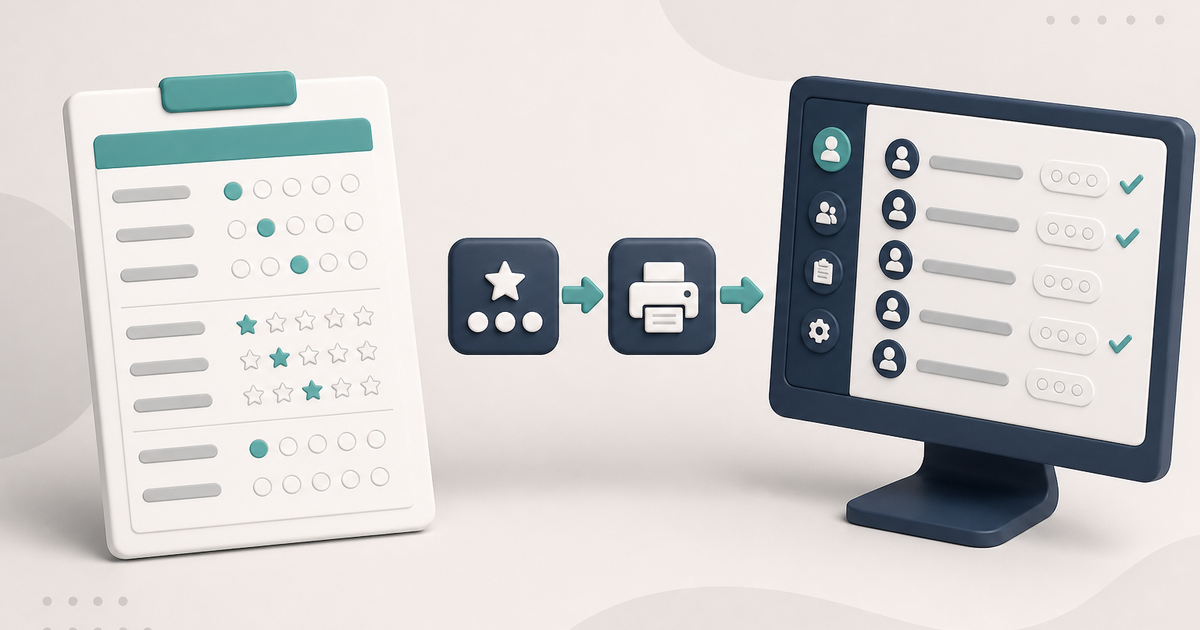
Open Monthly Activity Assessments in the Client Center, record the client's participation on Form ES2500, print it for the chart, and optionally set a recurring schedule.
Watch the video walkthrough
📝 Overview
The Activity Assessment - Form ES2500 records one client's participation, social interests, and general activity observations. Activity Assessments are maintained in the Client Center.
This is separate from the Monthly Nursing Assessment - Form ES3500 and from Nurse's Notes, which are maintained in the Nursing Center.
Open Client Center → Monthly Activity Assessments. The Activity Assessment List shows clients on the left and the selected client's assessments on the right.
⚙ How It Works
1. Open Monthly Activity Assessments
Open the Client Center and click Monthly Activity Assessments.
Highlight the client you want. Change View to All Clients when you need a client who is no longer active.
The Activity Assessments tab contains ordinary assessment records. Recurring Activity Assessments contains recurring templates and their schedules.
For a Limited Access user, Monthly Activity Assessments requires the Edit Activity Assessments permission.
The same list can also be opened from Report Center by selecting Activity Assessment - Form ES2500.
2. Complete the Assessment
Click Add New for the highlighted client. To edit an existing assessment, highlight it and click Edit, or double-click the row.
A new assessment opens with the client selected, today's date, and Print Later enabled.
Complete Observations on Attitude and Social Interests and General Observations. Each rating uses the available choices shown on the form. Complete the routine-and-patterns question, changes, recommendations, and other fields needed for an accurate current assessment.
The client and a complete Date are required to save the record. After the first successful save, the assessment remains assigned to that client.
3. Save the Assessment
Click Save & Close to store the assessment and return to the list.
A new assessment requires both the client and a complete Date before it can be saved.
4. Print Form ES2500
Open an assessment and click Print to produce the completed Form ES2500 in the Report Viewer. Save any pending changes before printing.
From the Activity Assessments list, the Print menu provides:
- Selected Record for the highlighted assessment.
- 'Print Later' Records for records marked to print later.
- Print by Date Range for existing assessments across all clients within the selected period.
Print by Date Range is limited to a maximum 31-day range. It prints assessments that already exist; it does not identify clients who are missing an assessment.
5. Set a Recurring Schedule
To create a recurring template, open the assessment and click Make Recurring. Choose Monthly or Yearly and set a future Next Due Date.
When the recurring Activity Assessment becomes due, ElderSuite prompts at sign-in to create the next assessment. If the user approves the prompt, ElderSuite creates the next record and advances the schedule.
The new assessment starts with the ratings, notes, and other values from the recurring template. Review and update the generated record so it reflects the client's current participation and observations before printing or filing it.
When setting up recurrence for the first time, Copy keeps the original assessment as an ordinary record and creates a separate recurring template. Convert turns the current assessment into the recurring template.
✅ Important Limitations
ElderSuite does not provide a report identifying clients who are missing an Activity Assessment for a particular month.
Print by Date Range prints existing assessments within the selected period; it does not list missing assessments.
The rating fields are not required by the save routine, so staff should review the assessment for completeness before treating it as current documentation.
A saved assessment cannot be moved to another client.
Printing is performed from ordinary Activity Assessment records rather than from the recurring-template tab.
💡 Need More Help?
For step-by-step assistance, click Ask Eddie from within ElderSuite.
Follow ElderSuite in Google
Add ElderSuite as a Preferred Source to help Google show you more of our adult day care articles, industry updates, and resources.
Open Client Center → Monthly Activity Assessments to complete or print Form ES2500. Use Ask Eddie for help with a specific step.
ElderSuite is adult day care software for attendance, Medicaid billing, nursing documentation, and CACFP. You can try it free for 30 days.
Start a Free Trial
