
How to Use the Document Viewer in ElderSuite
The Document Viewer opens stored PDFs read-only. Open it from client, provider, or employee documents, print, save a copy, switch Use Legacy Print Mode, and fix common errors.
Watch the video walkthrough
📝 Overview
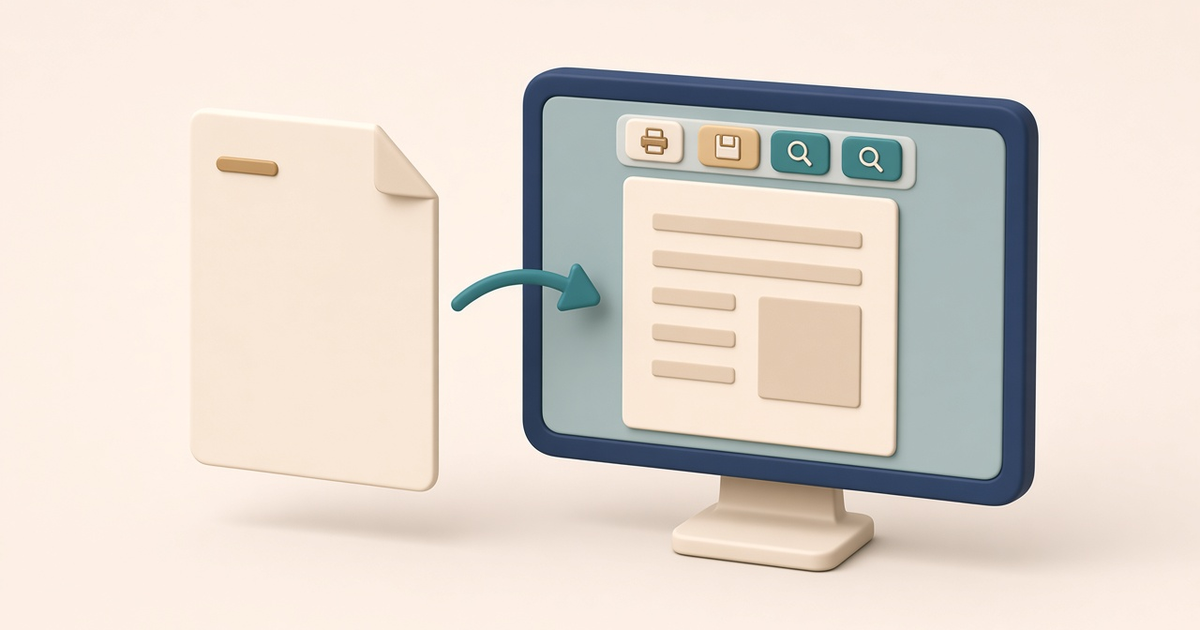
The Document Viewer is where ElderSuite shows a stored PDF on screen: a document attached to a client, provider, or employee record, the signed copy of a record, or a scanned attendance or meal log. You never open it by name, and no Center has a link for it. View a stored PDF and the viewer opens on its own, inside the main ElderSuite window.
The viewer is read-only. You can read a document, search it, print it, and save a separate copy, but you can’t edit or mark it up, and nothing you do here changes a record or the stored file. It’s the counterpart of the Report Viewer, which shows documents ElderSuite has just produced; for that window, see How to Use the Report Viewer in ElderSuite.
⚙ How It Works
Only PDFs Open in the Viewer
Before anything opens, the screen you’re viewing from checks the file type. A PDF opens in the Document Viewer. Any other kind of file opens in whatever program your computer uses for that file type, outside ElderSuite. That’s why a document can open somewhere else even though you clicked it in ElderSuite.
Select a document first. Then double-click it, or click View where the screen has one. If the file isn’t on this computer yet, a Receiving... window downloads it first, so the first view of a document can take longer than later ones. A please-wait message stays up through the download and the open, so a slow download can look like a frozen screen while it’s working normally.
Open Client Documents From the Client Center
- From the client list. Click Client List, then double-click a row in the client’s attached documents area.
- From the client record. Open the client and double-click a row on the Documents tab.
- From Client Documents. Open it with Add Document on the Clients toolbar or Manage Documents on the Documents tab, select a document, and click View or double-click it.
For adding, renaming, and removing client documents, see How to Manage Client Documents in ElderSuite.
Open Provider and Employee Documents From the Provider Center
- Provider documents. Click Manage Provider Documents, select a document, and click View or double-click the row. See How to Manage Provider Documents in ElderSuite.
- From the employee record. Click Manage Employees, open the employee, and double-click a row on the Documents tab.
- From Employee Documents. On the open employee record, click Manage Documents, select a document, and click View. See How to Manage Employee Documents in ElderSuite.
Documents added with a scanner are filed as PDFs, so they open here too. For scanning paper in, see How to Scan Documents into ElderSuite.
Open a Signed Copy or a Scanned Log
Records kept through Sign & Sync, such as a Health Assessment - Form 3050, show a View Signed Copy button once a signed copy is on file. Click it, or double-click the signed copy on the Sign & Sync Documents tab of that record type’s list. A copy you just scanned and haven’t saved yet is already on this computer, so it opens without a download. See How to Use Sign & Sync in ElderSuite.
Attendance & Transportation Records and Meal Records show View Scanned Log when a scanned log is on file for the day or week on screen. Clicking it opens the scanned log in the viewer as one document.
Read, Search, and Move Through Pages
The document opens at Page level zoom, with one whole page fitted to the window. The toolbar across the top holds everything you can do:
- Find (Ctrl+F) searches the open document only, not other stored documents.
- The previous page and next page commands (Page Up and Page Down) move one page at a time. The page number box shows the page you’re on; type a whole number to jump to that page.
- The zoom menu offers fixed percentages plus Actual size, Page level, Fit width, and Fit visible. Zoom out and zoom in change the size one step at a time.
The viewer doesn’t lock the rest of ElderSuite. You can switch to other ElderSuite windows while a document is open.
Print a Document
Click Print at the far left of the toolbar, or press Ctrl+P. Choose the printer, pages, and number of copies in the print dialog, and a progress window shows while the document is sent. The printout is the stored document itself, page for page. ElderSuite adds no header, footer, or page numbers of its own.
Use Legacy Print Mode When a Printer Gets It Wrong
The Use Legacy Print Mode switch sits at the right-hand end of the toolbar, and it starts switched on. It changes how the document is sent to the printer, which can fix a document that prints incorrectly on one particular printer, usually because that printer’s driver mishandles embedded fonts or images. Switch it, print again, and compare.
The switch affects printing only, so the document on screen won’t look any different. Legacy mode is much slower, because it sends large images to the printer. ElderSuite saves your choice the moment you change it and keeps it for later documents and later sessions. The Report Viewer uses the same setting, so changing it in one window changes it in the other. For broader printer troubleshooting, see Report or Form Not Printing Correctly or Completely in ElderSuite.
Save a Copy With Save As
Click Save As (Ctrl+S) and choose a location and file name. ElderSuite writes a separate copy of the PDF there. The document stored in ElderSuite stays exactly as it was, and changes to your copy are never sent back. There’s no Save button, because there’s nothing to save into ElderSuite. Before you save a copy, read the Privacy section below.
One Document at a Time
Only one Document Viewer is open at a time. If you view another PDF while it’s open, the new document replaces the one on screen and the viewer comes to the front. The first document isn’t lost; view it again from where it’s stored. To keep one document in view while you read another, save a copy of it with Save As first and open that copy outside ElderSuite.
Close the Viewer
The toolbar has no Close button. Use the window’s own close control on its title bar. Closing asks no questions and loses nothing, and you’re back on the screen the document was opened from, which stayed open behind the viewer.
When a Document Won’t Display
An empty or missing file never opens in the viewer. The screen you viewed it from checks the file first, and what you see depends on that screen:
- File Removed. The message says the file appears to have been removed by another user and suggests restarting ElderSuite. The copy of the file on this computer is empty, so the viewer doesn’t open and the list refreshes. Restart ElderSuite and view the document again. If the message comes back, the file is no longer available, so upload the document again.
- File Not Uploaded. The message says the file is not available because it was not uploaded to the ElderSuite Document Server. Upload the document again.
- Nothing opens, and the list of documents refreshes. The file arrived empty. If the document is still in the list, view it again. If it still doesn’t open, upload the document again.
- “The file could not be opened because it is either corrupt or not the correct file format.” (Invalid File Format). The file is there but can’t be read as a PDF. Close the viewer and upload the document again where it came from.
- “Your preferences could not be saved and may not be remembered next time you open ElderSuite.” (Settings Not Saved). Your Use Legacy Print Mode change works for now but won’t be remembered. The message explains the usual cause, security software blocking the settings folder, and lists the steps: add the folder as an exception in your antivirus software, keep it out of cloud file syncing, and exclude it from disk cleanup tools.
- “The scanned log is open in the Document Viewer. Please close the Document Viewer and try again.” Close the viewer, then click View Scanned Log again.
- The document opened in a different program. It isn’t a PDF, so it went to the program your computer uses for that file type.
⚠ Use Legacy Print Mode Stays Where You Leave It
Use Legacy Print Mode starts switched on, and any change you make is remembered across documents and sessions, in both the Document Viewer and the Report Viewer. A change you make to fix one stubborn printer carries over to everything you print afterward. If other documents start printing wrong after you change it, switch it back.
🔒 Privacy
A copy you make with Save As is outside ElderSuite. It’s an ordinary file in the folder you chose, anyone who can open that folder can read it, and removing the document in ElderSuite doesn’t remove your copy. Stored documents often hold client health information, so save copies only where your center’s privacy rules allow, and delete them when you’re done.
💡 Need More Help?
For step-by-step instructions, click Ask Eddie from within ElderSuite.
Follow ElderSuite in Google
Add ElderSuite as a Preferred Source to help Google show you more of our adult day care articles, industry updates, and resources.
For step-by-step instructions, click Ask Eddie from within ElderSuite.
ElderSuite is adult day care software for attendance, Medicaid billing, nursing documentation, and CACFP. You can try it free for 30 days.
Start a Free Trial
