
How to Use Sign & Sync in ElderSuite
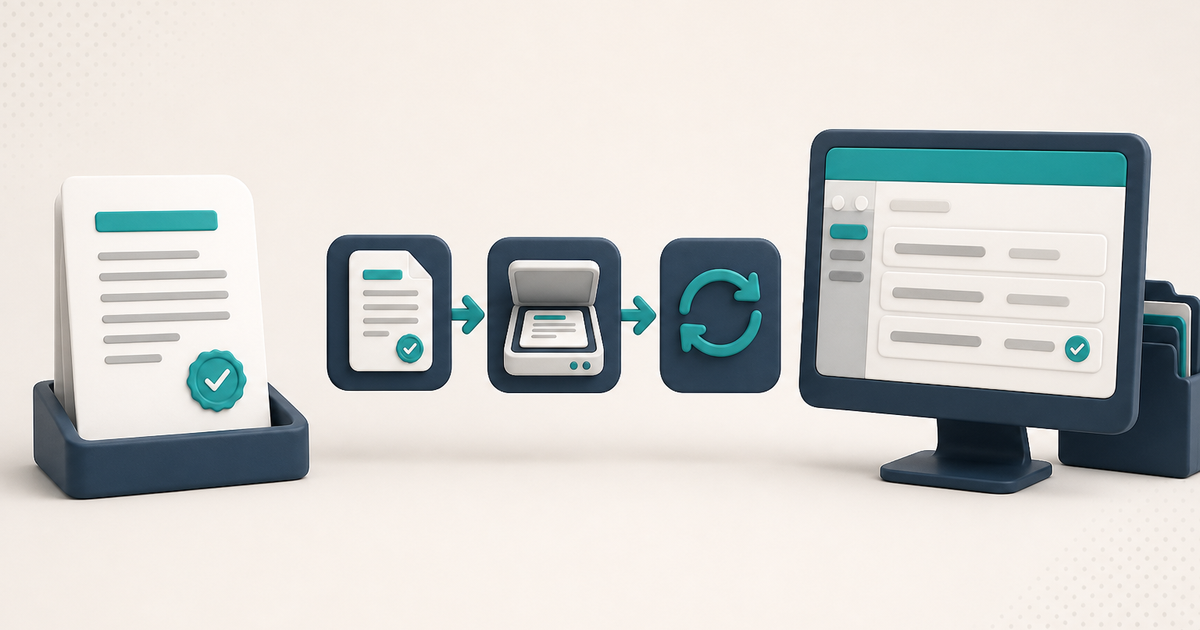
Sign & Sync opens the ElderSuite Scan Manager so a signed paper copy can be scanned into the client's documents. The paper is signed first; the command files that signed copy.
Watch the video walkthrough
📝 Overview
Sign & Sync is the command on a saved record that opens the ElderSuite Scan Manager so a signed paper copy can be scanned back into ElderSuite. The paper is signed first. Sign & Sync files that signed copy with the record.
ElderSuite serves adult day care centers nationwide.
The command sits on the menu bar of nine record windows. From the Client Center: Case Information, Social History Assessment, and Activity Assessment. From the Nursing Center: Health Assessment, Monthly Nursing Assessment, Physician's Order, and Physician's Standing Order. From the Nutrition Center: Meal Application. From the Provider Center: Fire Drill Report. The same records can also be opened from their reports in the Report Center.
Sign & Sync is a shared command. The ElderSuite Scan Manager is never opened from a Center on its own. Another window opens it and tells it what the scan is for.
This page teaches how Sign & Sync works. How to Scan Documents into ElderSuite covers Scanner on Client Documents, Employee Documents, and Provider Documents. The Physician's Order record that can carry Sign & Sync is covered in Physician's Order - Form 3055 in ElderSuite.
⚙ How It Works
1. Open the Saved Record
Open the record that already holds the information to be signed. Sign & Sync files the scan against that saved record.
Highlight the client first when the record belongs to a client. Work from that client's record.
2. Open Sign & Sync
Click Sign & Sync on the menu bar. The ElderSuite Scan Manager opens so the signed paper copy can be scanned.
Scan the signed pages. Click Finished Scanning. The Scan Manager hands the scan back to the record window.
If the record has unsaved changes, ElderSuite asks whether to save first before signing and syncing. If a signed copy is already on file, ElderSuite asks whether to scan a new one and replace it.
3. File the Signed Copy
A successful scan is confirmed on the record: the signed copy will be added to the client's documents when you save. On a Fire Drill Report, that destination is the provider documents.
Click Save & Close to send the signed copy. Nothing is sent until the record is saved.
The Signed & Synced badge and View Signed Copy appear once a signed copy is on the record. View Signed Copy opens that copy in Document Viewer. Some lists also show those copies on a Sign & Sync Documents tab.
4. What Sign & Sync Is Not
Print produces the paper form from the saved record. Sign & Sync files the signed paper that comes back. They are different commands.
Sign & Sync scans a signed paper copy. The signature is already on that paper.
Scanner on Client Documents is a different command. Use that workflow when the file is a general client, employee, or provider document rather than the signed copy of one of the nine records.
5. Recurring Templates
On a Health Assessment, Monthly Nursing Assessment, Activity Assessment, or Meal Application, Sign & Sync is disabled while the record on the window is a recurring template. Open the assessment or application the recurring schedule created, and sign that one.
⚠ Save Files the Signed Copy
A finished scan is not filed until the record is saved. ElderSuite confirms that the signed copy will be added to the client's documents when you save.
Click Save & Close to send it. The Signed & Synced badge and View Signed Copy can appear as soon as the scan finishes, before that save.
💡 Need More Help?
For step-by-step instructions, click Ask Eddie from within ElderSuite.
Sign & Sync is one piece of adult day care documentation software from ElderSuite.
Follow ElderSuite in Google
Add ElderSuite as a Preferred Source to help Google show you more of our adult day care articles, industry updates, and resources.
For step-by-step instructions, click Ask Eddie from within ElderSuite.
ElderSuite is adult day care software for attendance, Medicaid billing, nursing documentation, and CACFP. You can try it free for 30 days.
Start a Free Trial
