
How to Reconcile Claims in ElderSuite
Open Reconcile Claims from the Claim Center, Find claims for the date range, check the rows to update, apply a new status with Change to..., then Save & Close.
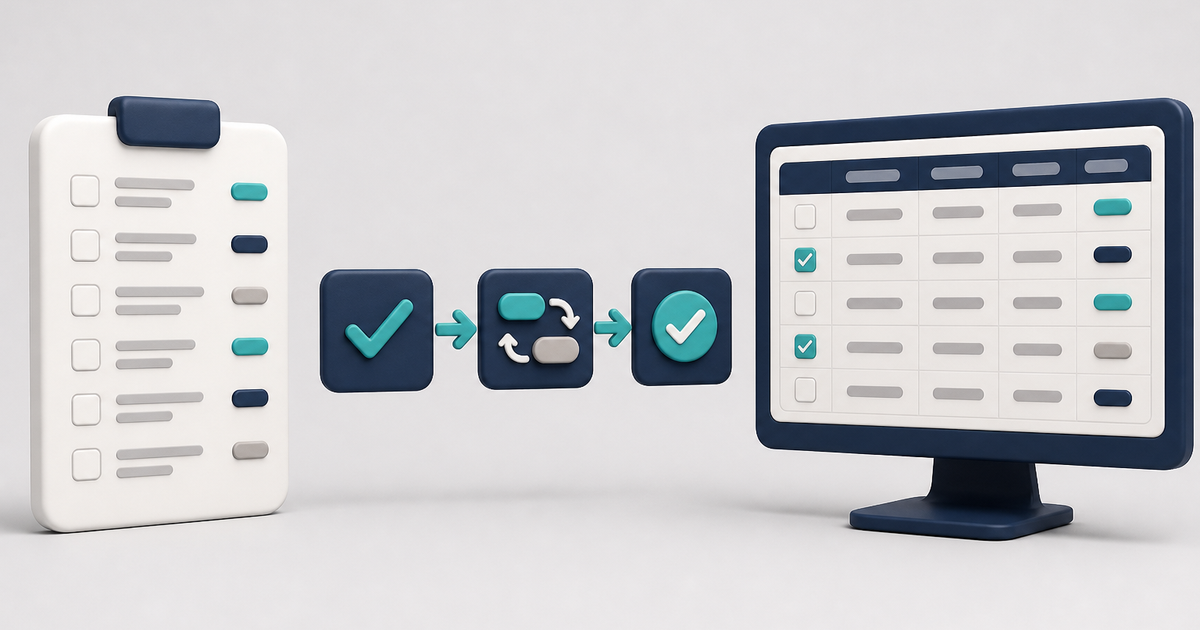
Watch the video walkthrough
📝 Overview
Reconcile Claims is the ElderSuite window where claim statuses are reviewed and updated in bulk for a chosen date range. Each row is a claim for one client on one service date. The list shows Client Name, Date, Amount, Payment Type, and Status. Those columns are for review; the checkboxes at the left of the grid are what you mark.
Open Claim Center from the ElderSuite main menu and click Reconcile Claims. Set Start Date and End Date, click Find, check the claims whose status should change, then use Change to... to apply a new status to every checked row. Click Save & Close to store those statuses.
The Claim Center lays billing work out as Scrub Claims, Process Claims, View Reports, and Reconcile Claims.
Print builds a claims reconciliation report of every listed record and opens it in the Report Viewer.
⚙ How It Works
1. Open Reconcile Claims
Open Claim Center and click Reconcile Claims.
For a Limited Access sign-in, Reconcile Claims requires the Reconcile permission. Without it, the button is disabled. Permissions are read at sign-in, so sign out and back in after the permission is granted.
The window can also open from the Claim Center banner that points at submitted claims still waiting on a recorded payer response. In that case Filter by Claim Status is already set to Submitted.
2. Find Claims for the Date Range
Start Date opens on Monday of the current week, and End Date opens on Friday of the current week. Change them to the period you want, then click Find.
Find loads the claims whose service dates fall in that range. The list sorts by client name, then by date. If Start Date is later than End Date, nothing is loaded. If no claims exist for those dates, the grid is empty.
After Find, Filter by Payment Type and Filter by Claim Status return to All, and any checked rows clear. Set those filters after Find when you want one payer or one status at a time. The two filters work together. Changing either one clears the checks.
Print reports every record currently listed, including total units and total amount for that list.
3. Change the Status of Checked Claims
Check the rows whose status should change. Click Change to... to open Select New Claim Status, highlight the status to apply, and click Change.
That status is written onto every checked row. One checked row is one claim. All is a filter value; it is not a status that can be applied. The statuses offered are the claim statuses on file, except All.
After Change, both filters return to All and the checks clear, so the full loaded list is shown with the new statuses on those rows. The new statuses are held on the window until they are saved.
4. Click Save & Close
Click Save & Close to store the new statuses and return to the Claim Center.
If you close the window instead, and unsaved status changes are on the list, ElderSuite asks Would you like to save your changes? with Yes, No, and Cancel. Yes saves the same way as Save & Close. No discards the unsaved statuses and closes. Cancel leaves the window open.
If another person changed the same claims after this window loaded them, those on-screen statuses are not stored, and the window still closes. Open Reconcile Claims again and apply the statuses once more.
⚠ Click Save & Close
Change to... updates the list on the window. Those statuses are stored only after Save & Close.
Find loads the stored claims for the dates you set. Status changes that have not been saved are not kept when Find runs. Click Save & Close when the list is right, or answer Yes if ElderSuite asks Would you like to save your changes? before you close the window.
💡 Need More Help?
For step-by-step instructions, click Ask Eddie from within ElderSuite.
Follow ElderSuite in Google
Add ElderSuite as a Preferred Source to help Google show you more of our adult day care articles, industry updates, and resources.
For step-by-step instructions, click Ask Eddie from within ElderSuite.
ElderSuite is adult day care software for attendance, Medicaid billing, nursing documentation, and CACFP. You can try it free for 30 days.
Start a Free Trial
