
How to Print Attendance and Absence Reports in ElderSuite
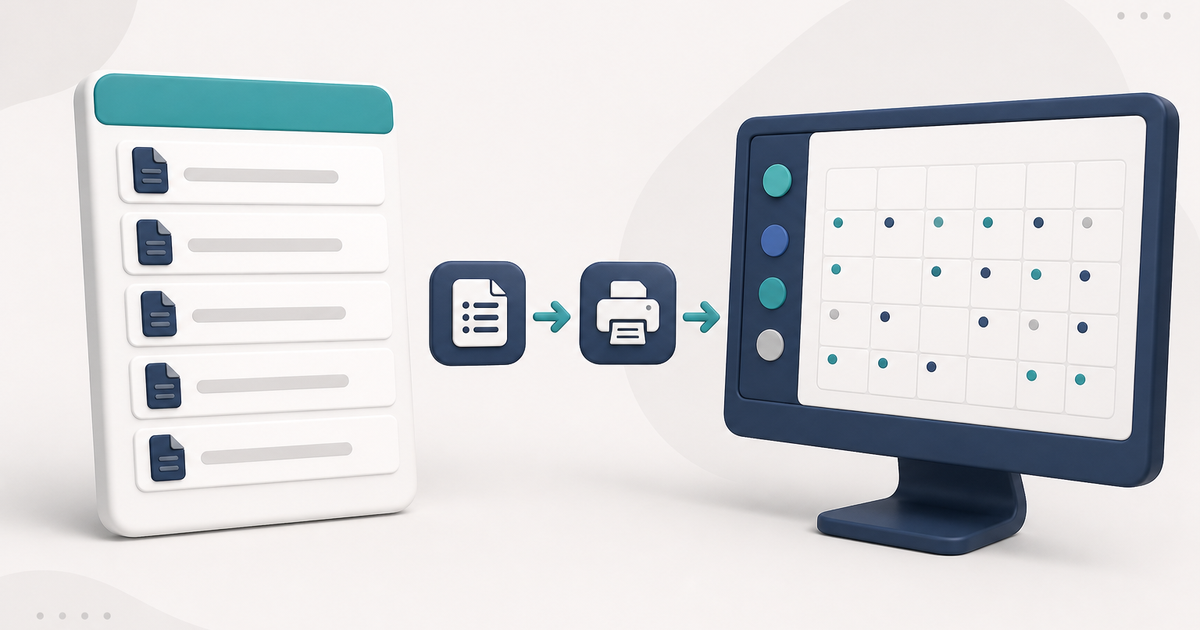
Choose the right report in Report Center so you can print a monthly calendar, a period summary, a weekly attendance record, or a listing of clients with no attendance.
Watch the video walkthrough
📝 Overview
Use the Report Center when you need to print attendance or absence information that has already been saved in ElderSuite.
Open Report Center from the ElderSuite main menu and select Client Reports. Choose the report that matches the question you need to answer:
- Attendance Calendar - Form ES3100 prints a monthly calendar for selected clients, including attendance times and unit totals.
- Attendance Summary - Form ES3000 lists attendance records for a date range, including payment type, times, and units.
- Daily Attendance Record - Form 3683 prints the Monday-through-Friday weekly attendance record.
- Client Absence Report - Form ES1201 identifies clients for whom the report finds no attendance or transportation records in the selected date range.
Daily Transportation Record - Form 3682 is a different report, and Client Roster - Form ES1200 is a roster rather than an absence report.
These reports read existing records; they do not add, change, or delete attendance.
⚙ How It Works
1. Open Report Center and Choose the Report
Open Report Center → Client Reports. Highlight the report you need, then click View Report or double-click the report name.
2. Print a Monthly Attendance Calendar
Choose Attendance Calendar - Form ES3100.
Check one or more clients available in the selector, choose the month and year, and click Preview. ElderSuite creates a monthly calendar for each selected client who has attendance during that month.
Clients with no attendance for the selected month are not included. The Attendance Calendar shows attendance; it does not identify absence dates.
3. Print an Attendance Summary for a Date Range
Choose Attendance Summary - Form ES3000.
Set Start Date and End Date, then click Preview. The report lists saved attendance records within that period, including dates, payment types, times, and unit totals.
There is no individual client selector on this report. Confirm that the date range is valid and that End Date is not earlier than Start Date.
4. Print the Weekly Attendance Record
Choose Daily Attendance Record - Form 3683. The options window is titled Attendance Record - Form 3683.
Form 3683 covers one Monday-through-Friday week. Select the Monday for the week you need and confirm the ending Friday before clicking Preview.
A Saturday or Sunday attendance record is outside this Form 3683 weekly printout, even though weekend attendance can still exist elsewhere in ElderSuite.
5. Print a Client Absence Report
Choose Client Absence Report - Form ES1201.
Set the date range and click Preview. The report identifies clients for whom it finds no attendance or transportation records in that selected period.
If the report finds attendance or transportation for a client in the range, that client is not treated as absent for the entire range. Form ES1201 therefore does not list the individual days a particular client missed.
✅ Important Limitations
These reports only use saved attendance and transportation records. Unsaved or missing service times will not appear as attendance.
The Attendance Calendar covers one calendar month and only includes selected clients with attendance in that month.
The Attendance Summary and Client Absence Report use date ranges and do not provide an individual client picker.
Form 3683 covers one Monday-through-Friday week.
Daily Meal Count & Attendance - Form 1535 is a Nutrition Reports form and serves a different purpose.
💡 Need More Help?
For help choosing or printing an attendance or absence report, open Ask Eddie inside ElderSuite.
Follow ElderSuite in Google
Add ElderSuite as a Preferred Source to help Google show you more of our adult day care articles, industry updates, and resources.
For help choosing or printing an attendance or absence report, open Ask Eddie inside ElderSuite.
ElderSuite is adult day care software for attendance, Medicaid billing, nursing documentation, and CACFP. You can try it free for 30 days.
Start a Free Trial
