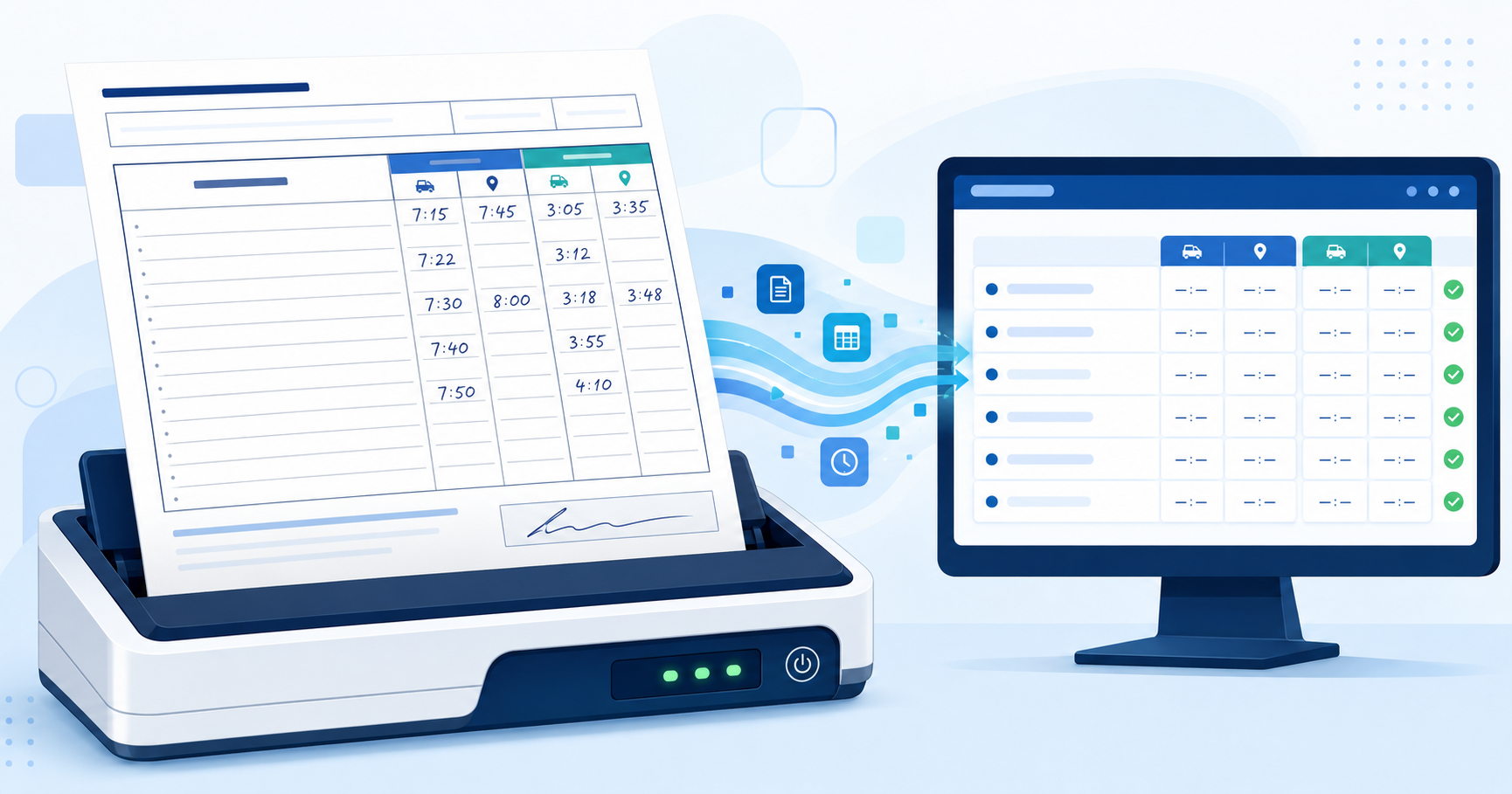
Learn how ElderSuite reads handwritten pickup and drop-off times and imports them into Attendance & Transportation for review.

ElderSuite’s Scan Times feature can read handwritten pickup and drop-off times from completed Form 3682 route sheets and place them into Attendance & Transportation for review.
This reduces manual entry while allowing staff to compare the imported times with the original paper forms before anything is saved. Because handwriting recognition cannot be completely accurate in every situation, all imported information must be reviewed carefully.
To scan completed route sheets, go to:
Client Center → Attendance & Transportation → Scan Times
The feature is designed for Form 3682 route sheets originally printed from ElderSuite.
Every current Form 3682 printed from ElderSuite includes an ElderSuite Ref # near the bottom-left corner.
When the form is printed, ElderSuite records which client appeared on each line of each page. That information allows the completed form to be matched with the appropriate clients when it is scanned later.
This printed reference is important because a center’s client list can change between the date a route sheet is printed and the date it is scanned. A client may be admitted, discharged, added to a route, or removed from one during that time.
The reference number allows ElderSuite to use the original printed arrangement instead of relying only on the center’s current client list.
For the best results:
Sheets from several routes can be scanned together and do not have to be arranged in route order. However, every sheet included in the scanning session must be for the same service date.
To scan the forms:
For this process, ElderSuite automatically sets the scanner to grayscale at 300 DPI. These settings are required to help the system read handwritten information and cannot be changed during a Scan Times session.
As each page is processed, ElderSuite checks several pieces of information.
The facility name printed at the top of the form must correspond with the ElderSuite account currently being used. This helps prevent a form from another provider account from being imported accidentally.
The ElderSuite Ref # identifies the original printed Form 3682 and the clients assigned to each line when it was created.
ElderSuite reads the service date printed on the form. The Attendance & Transportation screen moves to that date and loads any existing records.
Only one service date can be processed during a scanning session.
ElderSuite checks the client name found on each line against the client name that was originally printed in that position. A line may be excluded when the names do not match.
ElderSuite displays a processing summary before placing any scanned times into the grid. The summary identifies how many clients can be updated and calls attention to information that was omitted or could not be matched confidently.
The recognized times are then placed into the Attendance & Transportation grid for review.
Compare every imported pickup and drop-off time with the corresponding paper form. Correct any differences and manually enter any valid times that were not imported.
Nothing is permanently saved until you select Save & Close. Before that point, you can correct or abandon the imported information just as you could with times entered manually.
Do not select Save & Close until you have confirmed that the imported times match the completed paper forms.
Scan Times may leave out information when:
When clients are missing from the screen because of the selected route filter, choose All Routes to display everyone for that service date.
Leaving an uncertain field blank is safer than inserting a guessed time. If a valid time is omitted, enter it manually after checking the paper form.
Pickup and drop-off times cannot be changed when a claim for that service date has already been electronically submitted for payment.
This restriction applies whether the times are scanned or entered manually. The claim status must be changed back to Pending before the transportation times can be modified.
Review the claim carefully before changing its status. Updating attendance or transportation information after submission may affect billing and may require additional claim-related action.
Forms printed from an older version of ElderSuite may not contain an ElderSuite Ref #.
These forms can still be scanned. Without a reference number, however, ElderSuite must rely more heavily on the client names printed on each line. This method is less certain than matching the form through its ElderSuite reference number.
Lines scanned from older forms are identified in the processing summary and should be checked especially carefully.
To avoid this issue, make sure every computer used to print Form 3682 route sheets has been updated to the latest version of ElderSuite.
After you review the information and select Save & Close, the imported times are saved to Attendance & Transportation.
ElderSuite also marks the scanned Form 3682 as completed. This helps staff determine which route sheets have already been processed and reduces the risk of scanning the same form more than once.
The original paper form should continue to be handled and retained according to your center’s documentation and records-retention procedures.
Handwriting styles, image quality, damaged pages, light ink, and marks outside the time boxes can affect recognition. Scan Times is designed to reduce manual entry, but it does not replace staff review of the completed route sheet.
Scanned forms are securely transmitted to ElderSuite’s data-processing environment so the handwritten times can be read and returned for review. Avoid adding information to the route sheet that is not required for attendance and transportation documentation.
If you need help using Scan Times or resolving a form that could not be processed, use Ask Eddie or contact ElderSuite Support.
ElderSuite is adult day care software for attendance, Medicaid billing, nursing documentation, and CACFP. You can try it free for 30 days.
Start a Free Trial