
Why Microsoft Edge Says ElderSuiteSetup.exe “Isn’t Commonly Downloaded” — and How to Install Anyway
Microsoft Edge shows a SmartScreen warning on ElderSuiteSetup.exe because ElderSuite's renewed code-signing certificate is still building download history. Three clicks — Keep, then Keep anyway — and the install proceeds.

Watch the video walkthrough
If you requested ElderSuite, clicked the download link in your email, and Microsoft Edge answered with “ElderSuiteSetup.exe isn’t commonly downloaded. Make sure you trust ElderSuiteSetup.exe before you open it” — nothing has gone wrong. The file is the real ElderSuite installer, it is digitally signed by MicroSolutions, and you can keep it in three clicks. This page shows exactly what to click, explains why the message appears, and tells you what to do if Windows asks one more time.
Short version: in the Edge Downloads panel, click the three dots ( … ) next to the warning, click Keep, click the small arrow beside Delete, and click Keep anyway. Then open the file and install as usual.
What the warning means
The message comes from Microsoft Defender SmartScreen, the protection built into Edge and Windows. Before Edge lets you open a downloaded program, SmartScreen checks two things: whether the file is signed by a publisher it recognizes, and how many other people have already downloaded that exact file. A program that is signed but has not yet been downloaded many times gets this “isn’t commonly downloaded” notice. It is a caution, not a detection — SmartScreen is saying it has not seen enough of this file yet, not that it found anything wrong.
You are seeing it now because ElderSuite’s code-signing certificate was renewed in September 2026 and moved to Microsoft’s own signing service. Each new release of the installer is a new file, and a renewed signing identity starts over on SmartScreen’s download history. Microsoft’s guidance is that the notice fades on its own as downloads accumulate over the coming weeks; until then, every new ElderSuite download will show it.
Here is the proof that the file is genuine. When you click through to the full dialog (step 3 below), Edge shows the signer it verified:
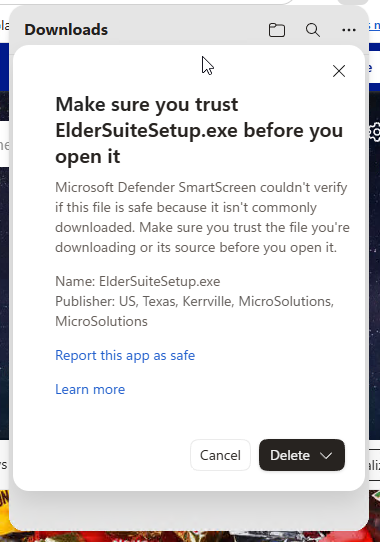
Publisher: US, Texas, Kerrville, MicroSolutions
Edge only prints a publisher line when the digital signature on the file checks out. If the file had been altered, or signed by anyone else, that line would be missing or would show a different name. MicroSolutions in Kerrville, Texas, is the company that makes ElderSuite.
Keep the download in Microsoft Edge
1. Open the Downloads panel
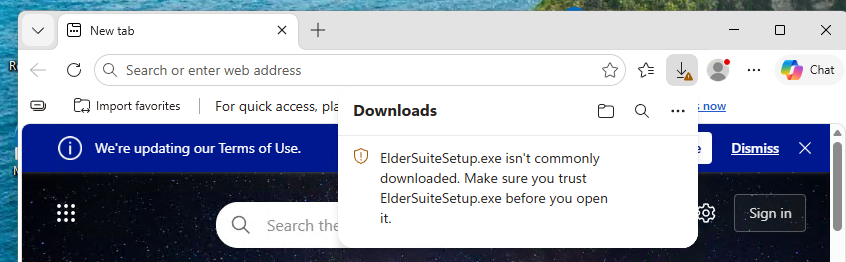
After you click the download link, Edge opens its Downloads panel in the top-right corner of the window with the warning shown below. If the panel has closed, click the download arrow on the Edge toolbar to open it again.
2. Click the three dots, then Keep
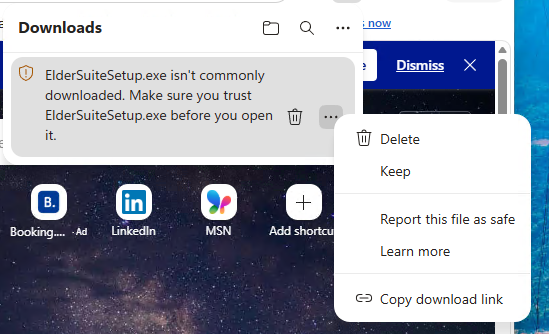
Move your mouse over the warning. Two small icons appear at the right edge of it: a trash can and three dots ( … ). Click the three dots, then click Keep in the menu that opens.
3. Read the confirmation dialog
Edge opens a larger dialog titled Make sure you trust ElderSuiteSetup.exe before you open it. Look at the Publisher line: it reads US, Texas, Kerrville, MicroSolutions. That is us. Notice that the big button says Delete — do not click it. The option you want is hidden under the small arrow beside it.
4. Click the arrow next to Delete, then Keep anyway
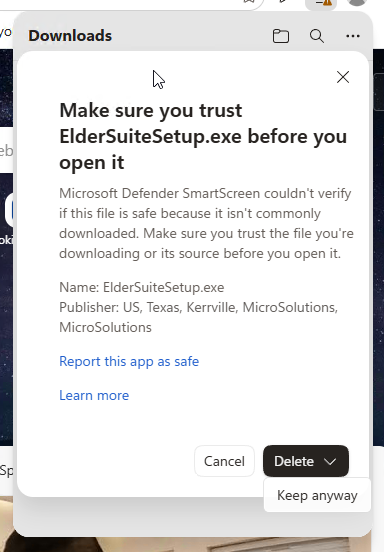
Click the small down arrow on the right side of the Delete button. A single option appears underneath: Keep anyway. Click it. The warning disappears and ElderSuiteSetup.exe is saved in your Downloads folder like any other file.
5. Open the installer
Click ElderSuiteSetup.exe in the Downloads panel, or open your Downloads folder and double-click it. From here, follow How to Install ElderSuite for the Welcome screen through first sign-in.
If Windows shows “Windows protected your PC”
On some computers Windows asks once more when you open the installer, with a blue full-width screen that says Windows protected your PC and shows only a Don’t run button. This is the same SmartScreen check running inside Windows instead of inside Edge, and the answer is the same:
- Click the More info link under the message. The screen expands to show App: ElderSuiteSetup.exe and Publisher: MicroSolutions.
- Click Run anyway.
The ElderSuite installer then opens normally. If you do not see this screen, nothing is missing — Windows simply did not ask.
If you use Chrome or another browser
Other browsers run their own download checks and may show a similar “keep this file?” message for a newly signed program. Choose the option that keeps the file (it is usually behind a small arrow or a Show more link, and is often worded Keep or Keep anyway), then open ElderSuiteSetup.exe. If Windows then shows “Windows protected your PC,” use More info and Run anyway as described above.
How to tell the file is safe
- Download only from the link in the email ElderSuite sent you, or from the ElderSuite download page. We do not distribute the installer through any other website.
- Check the Publisher line in the Edge dialog or the Windows “More info” screen. It should name MicroSolutions. If it names anyone else, or says Unknown publisher, do not run the file — delete it and contact us.
- You can also check the signature yourself. Right-click ElderSuiteSetup.exe in your Downloads folder, choose Properties, and open the Digital Signatures tab. The signer listed there is MicroSolutions.
Help us clear the warning faster
Both the Edge dialog and the three-dots menu include a link labeled Report this app as safe (or Report this file as safe). Clicking it sends Microsoft a short note that a real person reviewed the file and found it legitimate. It takes one click, and every report helps SmartScreen learn the new ElderSuite installer sooner. If you have a moment, please click it before you choose Keep anyway.
Need a hand?
If the panel closed before you could click, if a screen looks different from the pictures above, or if you would rather have someone walk you through it, call ElderSuite Support at +1 888.999.8055, Monday through Friday, 8:00 a.m. to 5:00 p.m. Central Time, or email support@eldersuite.com. We can stay on the phone while you download and install. You can also open a support ticket — include which browser you use and the exact wording on screen.
Once the installer opens, the rest is unchanged: accept the license, click Install, then choose Create Account for a new free trial or Authorize Device to add this computer to an existing account, exactly as described in How to Install ElderSuite.
Follow ElderSuite in Google
Add ElderSuite as a Preferred Source to help Google show you more of our adult day care articles, industry updates, and resources.
Once the installer opens, follow How to Install ElderSuite for first launch and sign-in — or call support and we'll stay on the line.
ElderSuite is adult day care software for attendance, Medicaid billing, nursing documentation, and CACFP. You can try it free for 30 days.
Start a Free Trial
