
How to Run a Criminal History Check in ElderSuite
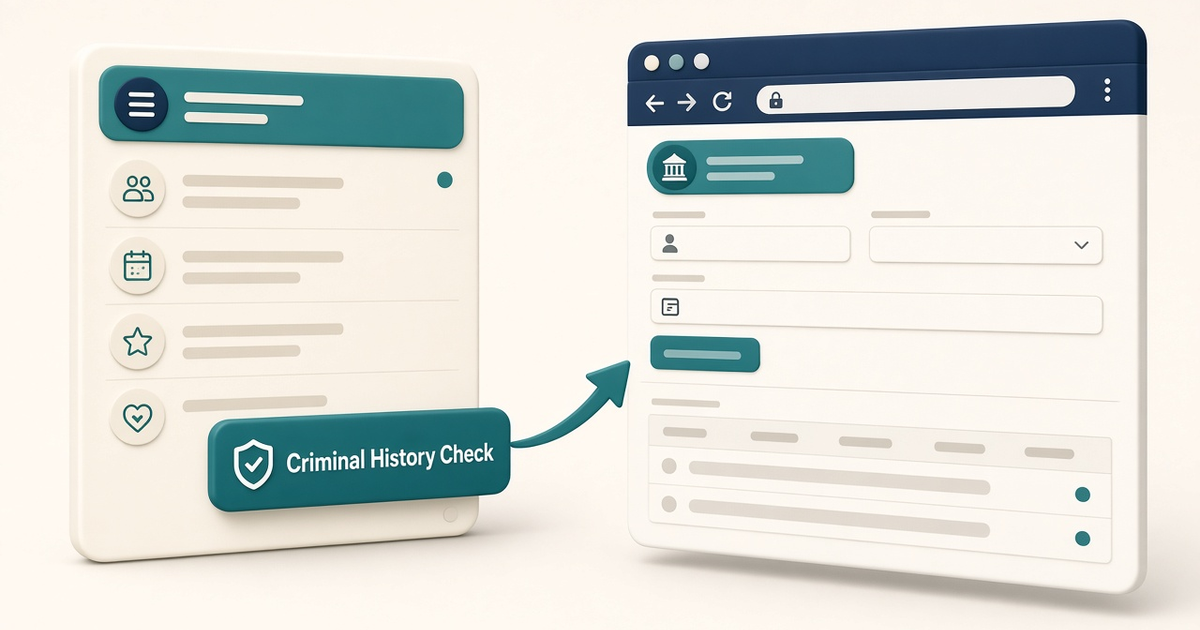
Open Criminal History Check from the Provider Center activity panel. ElderSuite opens your state’s official site in the default browser. It does not run the check or store results.
Watch the video walkthrough
📝 Overview
From Provider Center, open Criminal History Check on the activity panel (top row, rightmost). ElderSuite opens your state’s official criminal-history website in the default browser so you can run the search there.
ElderSuite does not run the check and stores nothing from it. The state site is where the search happens, and ElderSuite receives no result back.
ElderSuite serves adult day care centers nationwide.
This Guide covers the product button in ElderSuite. For broader hiring screening context, see our industry article Criminal Background Checks for Adult Day Care Employees.
⚙ How It Works
Open Provider Center, then choose Criminal History Check on the activity panel (top row, rightmost).
ElderSuite reads the first five characters of the provider account identifier as the state code, then opens that state’s recorded criminal-history website in the default browser. All fifty state websites are already recorded. For Texas providers, the button opens the Texas Department of Public Safety conviction name search.
Criminal History Check is not permission-gated. Limited Access settings never switch it off, so it stays available to every user who can open the Provider Center.
After you finish on the state site, return to ElderSuite to file any documentation your program requires—for example under employee documents.
✅ Important Limitations
ElderSuite does not perform the criminal history search and stores nothing from the state site.
The state is taken only from the first five characters of the provider account identifier. ElderSuite does not ask you to pick a state on the button.
If the account identifier is missing or five characters or shorter, the button does nothing—no website opens and no message appears.
If those first five characters are not a state code ElderSuite recognizes, a message headed Help Improve ElderSuite appears instead of a website. The exact invitation is: Do you know the correct entity which provides online access for processing Criminal History Checks on employees within your state? If so, let us know and we'd be happy to update ElderSuite with this information! That invitation is not a fault.
If the state site cannot be reached in time, ElderSuite shows a message titled Timed Out: Your computer could not access the site at this time. Please check your Internet connection and try again.
⚠ When Nothing Happens After the Click
If Criminal History Check appears to do nothing, check the provider account identifier. A missing identifier, or one that is five characters or shorter, produces a silent no-op. An unrecognized state code shows Help Improve ElderSuite instead of opening a site.
💡 Need More Help?
For step-by-step assistance, click Ask Eddie from within ElderSuite.
Follow ElderSuite in Google
Add ElderSuite as a Preferred Source to help Google show you more of our adult day care articles, industry updates, and resources.
For step-by-step assistance, click Ask Eddie from within ElderSuite.
ElderSuite is adult day care software for attendance, Medicaid billing, nursing documentation, and CACFP. You can try it free for 30 days.
Start a Free Trial
