
Adult Day Care Claim Denials: Common Causes and How to Prevent Them
Rejections happen before the payer adjudicates; denials happen after. Where adult day care claims fail, the common denial reasons and their fixes, which report to read, and how to resubmit in ElderSuite.
Watch the video walkthrough
Adult day care claim problems often begin before the electronic file is sent: the service date is wrong, attendance is incomplete, the client’s payer information is stale, a required authorization is missing, or provider enrollment does not match the identifiers on the claim.
Not every payer uses the same edits or denial reasons. Use the payer’s report or remittance as the authority for the specific claim, while maintaining a workflow that prevents avoidable data problems before submission.
For ElderSuite’s billing workflow, see Adult Day Care Billing Software. For how the claim itself is built, see 837P Claims for Adult Day Care Providers.
Rejection vs. denial: they are not the same problem
A rejection happens before the payer adjudicates the claim. The clearinghouse or the payer’s front end could not accept the file or the claim, usually because something was missing, malformed, or did not match an enrollment record. A rejected claim was never really “in” the payer’s system. You fix the cause and send it again as an original claim.
A denial happens after adjudication. The payer received the claim, processed it, and decided not to pay some or all of it. Denials arrive on the 835 / ERA with an adjustment reason, and the claim has a payer claim number. Fixing a denial may mean correcting and resubmitting as a replacement claim, supplying something the payer asked for, or accepting the decision.
The distinction matters in ElderSuite because the two are handled differently. A rejected claim is set back to Pending, corrected, scrubbed, and processed again with no special code. A denied claim that needs to be corrected goes back out with a Replacement resubmission code and the payer’s original claim number.
Where a claim can fail
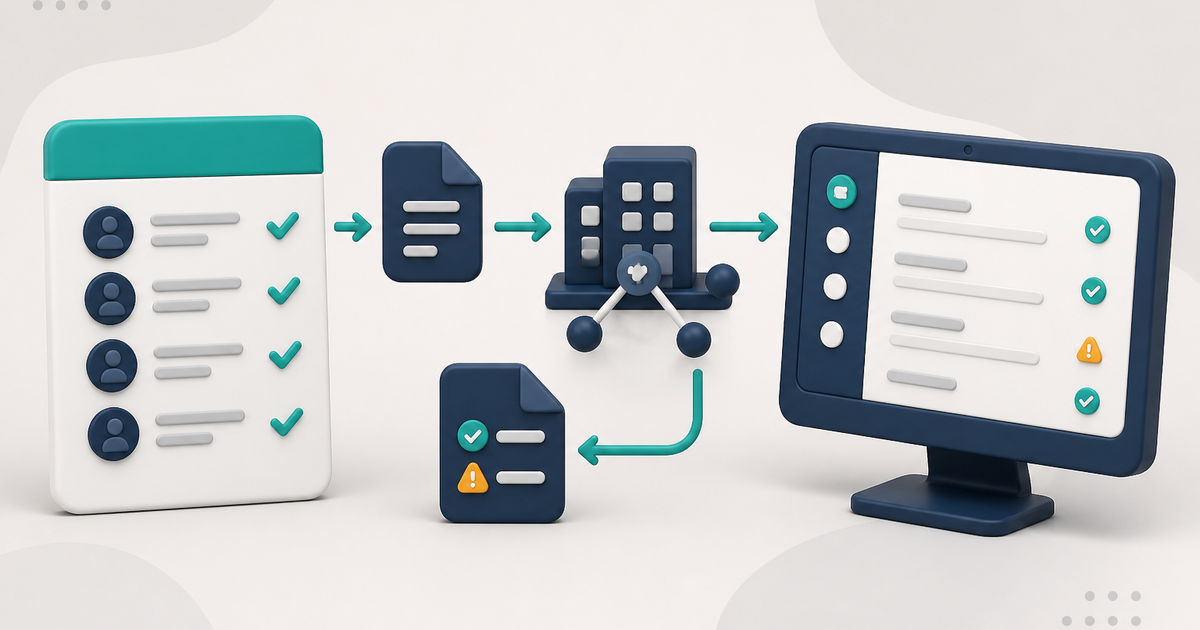
There are four places an adult day care claim can stop, and the report that tells you about it is different at each one.
1. Inside ElderSuite, before submission. Scrub & Fix flags a claim it cannot complete. The most common gaps are a missing service code, modifier, pay rate, or payer ID, and all four live on the Payment Type, from where they are copied onto the client record and then onto claims. Fixing them at the payment type fixes them for every client on it. A related trap is the Process Claims message that no Pending or error-free claims matched the payer and dates selected: it means nothing was eligible, so check the claim status and the error flag, not the payer.
2. At the clearinghouse. A claim that passes ElderSuite’s checks can still be rejected by Availity or TMHP, typically for an invalid or mismatched NPI or tax ID, an incorrect or outdated payer ID, or a value that particular payer requires. These rejections come back on the acknowledgment reports and normally name the field or segment.
3. At the payer. The clearinghouse can forward a claim the payer then rejects or drops. Common causes are a missing ZIP+4 in Provider Information, a provider that is not enrolled or credentialed with that payer, a client who is not enrolled or authorized with that payer, or a taxonomy mismatch. ElderSuite sends the adult day care taxonomy code 261QA0600X automatically on every claim; a payer reporting a mismatch is comparing it against its own enrollment record, so the fix is with the payer, not in the software.
4. Silently. If the clearinghouse report shows “Accepted” but no payer claim number and no payer acknowledgment ever arrives, treat it as a possible silent rejection. Nothing you correct in ElderSuite will surface it. Contact the payer’s provider relations team directly; the usual cause is enrollment or credentialing rather than claim data.
Common adult day care denial reasons and what fixes each
The exact reason code varies by payer, and the 835 / ERA is the authority for any specific claim. These are the categories that come up most often for center-based adult day care.
- Client not eligible on the date of service. Medicaid or waiver eligibility lapsed, or the client moved to a different plan. ElderSuite does not check eligibility with the payer. Verify eligibility for the dates billed, correct the client’s Payment Type if the payer changed, and resubmit only the dates that were covered.
- No authorization, or units beyond the authorization. ElderSuite will send a claim for an unauthorized date; the payer will most likely deny it. Confirm with the payer which dates and units are authorized, ask whether a retroactive authorization is available, record the authorization on the client, then scrub and resubmit.
- Attendance and units do not agree with the payer’s rules. A half-day unit billed for a stay that did not meet the minimum time, or a day billed that the client did not attend. Units come from the paired pickup and drop-off times on the attendance record and the unit definitions on the Payment Type, so the fix is usually the attendance record or the unit definition, not the claim.
- Duplicate claim. The same client, service date, and payer were billed twice, often because a rejected claim was resubmitted after the original had in fact been accepted. Check the 277 / 277CA and 835 for the first claim before sending another.
- Timely filing. The claim arrived after the payer’s deadline. Deadlines differ by state and payer: Texas fee-for-service claims have a 95-day window, MassHealth 90 days, New Jersey managed care plans 180 days, and North Carolina and Ohio 365 days, to take examples from our state guides. A timely-filing denial is rarely recoverable unless the payer allows an appeal with proof of an earlier submission, which is one reason to keep the acknowledgment reports.
- Provider not found or not enrolled. The NPI, tax ID, or address on the claim does not match the payer’s enrollment file. Updating Provider Information in ElderSuite does not update the payer, Medicaid, or NPPES. Coordinate the change with each payer, then correct the claims.
- Missing or wrong billing codes. A blank service code, modifier, or place of service comes from a Payment Type with incomplete defaults. Fill them in on the payment type, re-select the payment type on the client’s Claim Setup so the client record picks them up, then run Scrub & Fix; it fills every blank in the batch. A code that is present but wrong has to be corrected claim by claim, because the scrub only fills blanks.
- Diagnosis code problems. A payer may require a specific diagnosis code, a current code, or a code that supports the service. The diagnosis code is copied from the client record by the scrub, so correct it there and re-scrub.
Read the right report
Several reports can come back for one batch, and each answers a different question. Download them from Claim Center → View Reports → Download Reports.
- The TA1 and 999 say whether the file could be read. A rejection here stops the whole batch.
- Availity’s immediate batch responses (IBT, IBTP, 277IBR, 277IBRP) and the EBT say whether the clearinghouse accepted each claim. Accepted here means the claim passed the clearinghouse’s edits and is queued to be forwarded. The payer has not seen it. Rejected claims here should be corrected and resubmitted at once.
- The 277 and 277CA speak for the payer. This is the first proof the payer received the claim, and it carries the payer’s claim number.
- The DPT and DPR list claims the payer has acknowledged but not yet decided. A claim on one of these is not rejected, denied, or paid. Do not resubmit it unless a later report rejects it. If no further status arrives for weeks, around 30 days is a practical point to contact the payer with the client name, dates of service, and charges.
- The 835 / ERA is the payer’s payment decision: what was paid, denied, adjusted, or reversed, with the adjustment reason codes (CARC and RARC) when the payer supplies them. Accepted on any earlier report does not mean paid; only this report answers that.
One ElderSuite detail worth knowing: when a payer pays a date range as a single amount, ElderSuite allocates it across the attendance days in the claim. A day that receives a share shows as Paid and a day that receives none shows as Denied. That can produce Denied rows inside a claim that was paid overall, and it does not necessarily mean the payer separately denied those days. Billing report types in ElderSuite walks through each file.
How to fix a rejected or denied claim in ElderSuite
A rejected claim goes back out as an original. Open Reconcile Claims, set the claim back to Pending, correct the cause (on the Payment Type, the client record, or the claim itself), run Scrub & Fix again, and process it. Auto Reconcile deliberately leaves Rejected claims alone, so this step always needs a person.
A denied claim that needs correcting is different, because the payer already has it on file. Open the claim’s Health Insurance Claim Form, set the Resubmission Code to Replacement, and enter the payer’s claim number in Original Reference No.; that field becomes required the moment Replacement or Void is chosen. The claim number is on the 277 / 277CA or the 835 / ERA in the report detail viewer. Set the claim back to Pending, scrub it, and process it. Void works the same way when the prior claim should be cancelled rather than replaced. How to Adjust a Submitted Claim has the screen-by-screen steps.
A denial you accept stays Denied. Leave the record as the payer reported it so the service date carries an accurate history.
A reversal can happen after payment. Payers can re-adjudicate a paid claim and take the payment back on a later remittance. ElderSuite recognizes a Reversed status for exactly this case, and Auto Reconcile will apply it from the report.
Start with the service date and attendance
In ElderSuite, saving Attendance & Transportation Records for a client on a service date creates the associated claim as Pending.
On the attendance grid, Units are calculated from the paired pickup and drop-off times using the unit definitions on the client’s Payment Type. When a claim is edited from Scrub Claims, the calculated Units value can be adjusted manually when needed. Invalid or unpaired times do not become attendance.
How to Record Attendance and Transportation Times in ElderSuite covers the daily record.
Confirm the client is ready to bill that payer
ElderSuite does not determine Medicaid eligibility, validate a member ID with the payer, or decide whether an authorization covers a service date. Those checks happen with the payer or program.
Before recording live service dates, verify the client’s Payment Type, insured/member information in Claim Setup, and any payer-required authorization information. How to Add a Client in ElderSuite covers where that information lives.
Keep provider identifiers aligned with enrollment
The electronic claim uses provider information maintained in Provider Information. If the NPI, Tax ID, business name, or service location no longer matches the payer’s enrollment record, the claim may fail even though the ElderSuite record itself saved correctly.
Updating provider information in ElderSuite does not notify Medicaid, managed-care organizations, NPPES, or other outside systems. What to Do When Your Adult Day Care Center Changes Owners, Address, NPI, or Tax ID covers coordinated changes.
Complete the Payment Type instead of repairing the same fields repeatedly
Manage Payment Types stores the payer name, clearinghouse payer ID, billing defaults, pay rate, and unit definitions used by the billing workflow. Confirm those values with the payer or clearinghouse.
Fixing a payer-wide setup problem at the Payment Type is more reliable than correcting the same field on individual claims every billing cycle.
Scrub every claim before submission
Scrub & Fix is required before Process Claims. It works with Pending claims, copies missing billing values from the client record where available, refreshes the pay rate, calculates an amount when the current amount is zero, and flags claims it cannot complete.
Resolve every scrub error, run the scrub again until the error clears, and save the scrubbed claims before submission. Scrubbing cannot invent units, a birth date, or an address, and a successful scrub does not replace payer-side eligibility, authorization, and enrollment checks.
How to Scrub Claims in ElderSuite covers the screen.
Use the correct clearinghouse route
ElderSuite supports electronic submission through TMHP and Availity. Traditional Texas Medicaid / DAHS fee-for-service claims use TMHP. Payers that accept claims through Availity use the Availity route.
After claims have been scrubbed successfully, use Process Claims to transmit them through the payer’s actual clearinghouse route. A successful connection to a clearinghouse is not proof that the selected payer route or payer ID is correct. What a Clearinghouse Does in Adult Day Care explains the roles.
Prevent stale Submitted claims
A submitted claim that never receives a recorded response deserves attention. Download reports on a regular schedule, review skipped or unmatched rows, and use manual reconciliation when necessary. The payer or clearinghouse report remains the source for the external claim outcome. How Auto Reconcile Updates Claim Statuses in ElderSuite explains what the software updates from a report and what it leaves for you.
The prevention checklist
- Record the correct service date and complete attendance times.
- Confirm the payer, member information, and authorization requirements before the first billable day.
- Keep provider identifiers, including the ZIP+4, aligned with payer enrollment.
- Maintain Payment Type billing defaults and payer IDs.
- Scrub every Pending claim, resolve every error, and save the successful scrub.
- Send through the payer’s actual clearinghouse route, inside the payer’s filing deadline.
- Download and read the response reports, and treat “accepted” as a stage, not a payment.
- Reconcile the result back to the original service record.
- Resubmit rejected claims as originals; correct denied claims as replacements with the payer’s claim number.
Follow ElderSuite in Google
Add ElderSuite as a Preferred Source to help Google show you more of our adult day care articles, industry updates, and resources.
See the complete ElderSuite billing workflow on the Adult Day Care Billing Software page, or open Ask Eddie inside ElderSuite for help with a specific claim screen.
ElderSuite is adult day care software for attendance, Medicaid billing, nursing documentation, and CACFP. You can try it free for 30 days.
Start a Free Trial
