
How to Scan Daily Meal Records into ElderSuite
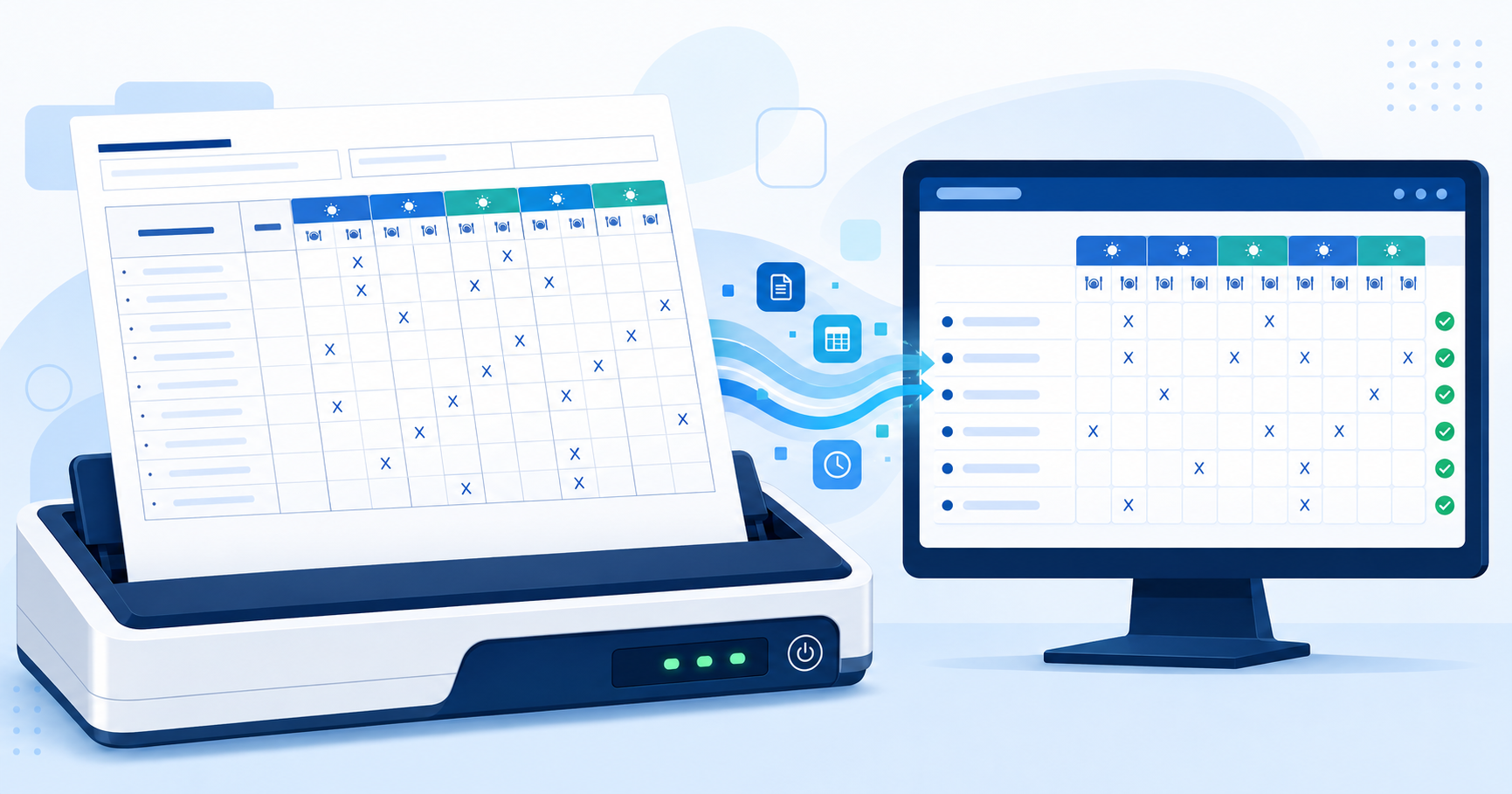
Use Scan Meals to read marked meal boxes from weekly Form 1535 logs into Meal Records. The import saves the week directly, so review all five days afterward.
Watch the video walkthrough
📝 Overview
Scan Meals reads marked meal boxes from completed weekly Daily Meal Count & Attendance - Form 1535 logs and imports the results into Meal Records.
Meal scanning works differently from Scan Times. After ElderSuite shows the scan results and you approve the import, the meals are saved directly rather than being left on one screen for review before saving. Because Form 1535 covers a Monday-through-Friday week, review all five imported days against the paper logs after every scan.
⚙ How It Works
1. Print a Blank Weekly Meal Log
Open Report Center → Nutrition Reports → Daily Meal Count & Attendance - Form 1535.
The report covers Monday through Friday. When printing a log that staff will complete by hand, clear Show Client Meals Served & Total Meals Served so existing ElderSuite meal marks and totals are not printed into the boxes.
2. Mark the Meals Served
Complete the paper log according to the center's food-program procedures. Use clear, dark marks that remain inside the applicable meal boxes.
Scan Meals imports the meal columns used by ElderSuite. Attendance and transportation times are not imported from Form 1535; those times use the separate Form 3682 / Scan Times workflow.
3. Open Scan Meals
Go to Nutrition Center → Meal Records. Save or discard any unsaved changes on the current day, then click Scan Meals.
Place the completed Form 1535 pages in the scanner. All pages included in one scan must belong to the same Monday-through-Friday week.
After scanning, review ElderSuite's summary of what was read. This confirmation is your opportunity to stop the import before any meal records are changed.
4. Understand What the Import Does
When you approve the import, the completed paper log becomes the source for the imported week and the meal changes are saved immediately.
- A marked meal box is recorded as served.
- An unmarked meal box clears an existing meal mark for that imported day.
- Existing meal selections, including selections previously created through Calculate Meals, can be replaced by the scanned log.
- If needed, ElderSuite creates the daily record required to store imported meal information even when attendance times have not yet been entered.
Transportation times, service units, and billing values are not created by Scan Meals.
5. Review the Import Summary and All Five Days
After processing, review the import summary for refused pages, unmatched lines, uncertain marks, or other items requiring attention. A mark ElderSuite is unsure about can still be imported and identified for review.
Then review each day of the imported week in Meal Records and compare it with the original paper log. Correct any difference so the saved meal record reflects what was actually served.
Meal Records shows one date at a time, while Scan Meals can update the entire Monday-through-Friday week.
✅ Important Limitations
Scan Meals is designed for the ElderSuite Form 1535 layout.
Pages in one scan must belong to the same week.
A page or participant line that cannot be matched may be left out of the import. Marks that are imported with uncertainty are identified for review.
Because unmarked meal boxes clear existing meal marks for the imported days, confirm that the paper logs are complete before approving the import.
The paper log should be retained according to the food-program and record-retention requirements that apply to the center.
💡 Need More Help?
For help scanning or reviewing Form 1535 meal records, open Ask Eddie inside ElderSuite.
Follow ElderSuite in Google
Add ElderSuite as a Preferred Source to help Google show you more of our adult day care articles, industry updates, and resources.
For help scanning or reviewing Form 1535 meal records, open Ask Eddie inside ElderSuite.
ElderSuite is adult day care software for attendance, Medicaid billing, nursing documentation, and CACFP. You can try it free for 30 days.
Start a Free Trial
