
How to Review Claims Awaiting Payer Response in ElderSuite
When Claim Center shows claims still Submitted with no payer response after 30 days, use Claims Awaiting Payer Response to download reports or reconcile.
Watch the video walkthrough
📝 Overview
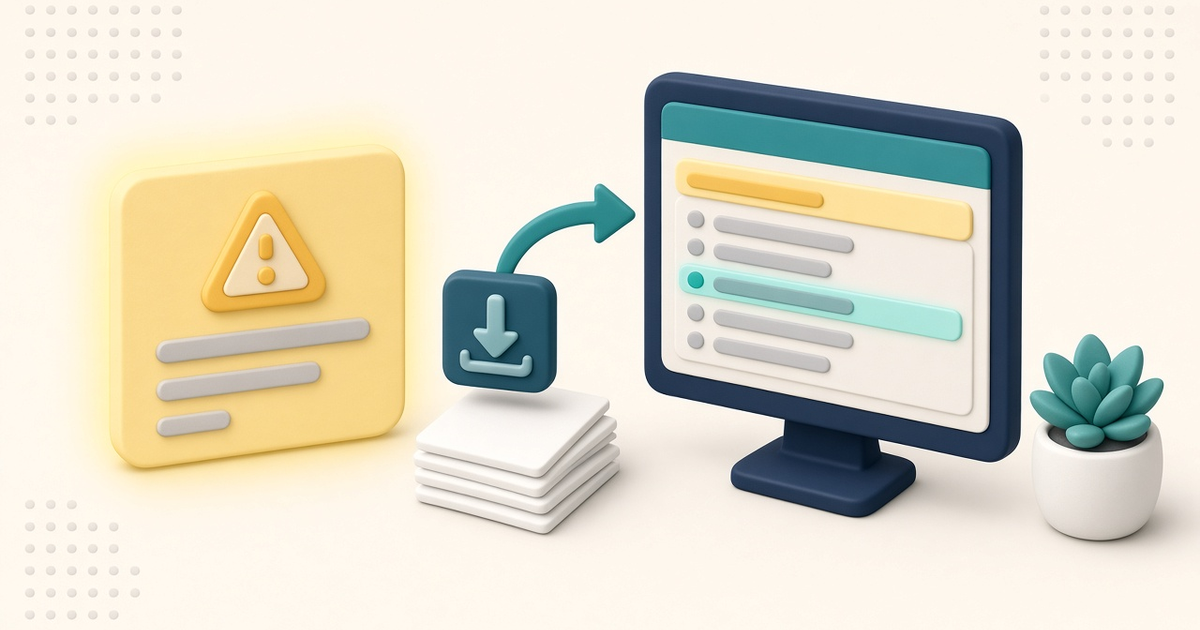
The Claim Center watches for claims that were sent out but still have no recorded payer response. When at least one claim still has the Submitted status, was submitted more than 30 days ago, and falls within the last six months, a yellow alert banner appears across the top of the Claim Center.
The banner reads Claims submitted more than 30 days ago have no payer response. That usually means clearinghouse reports have not been downloaded and reconciled yet. Catching those claims early helps you see denials, rejections, and unpaid work while there is still time to correct and resubmit.
Click What is this? on the banner to open Claims Awaiting Payer Response. That window is a read-only explanation of the alert. It does not change claim statuses by itself. From there you can jump to View Reports to download clearinghouse files, open Reconcile Claims already filtered to Submitted, or close and return to the Claim Center.
This Guide covers the stale claims banner and the Claims Awaiting Payer Response window only. Scrubbing, processing a batch, downloading reports in detail, and bulk status changes each have their own Guides: How to Scrub Claims in ElderSuite, How to Process Claims in ElderSuite, and How to Reconcile Claims in ElderSuite.
⚙ How It Works
1. Read the Stale Claims Banner
Open Claim Center from the ElderSuite main menu. When you arrive, ElderSuite checks for submitted claims that still need a recorded payer response.
If any qualify, the yellow banner appears with the message above. Use Download Reports on the banner to open View Reports (Step 3 in the Claim Center) and bring in clearinghouse reports. Use What is this? when you want the full explanation and the shortcuts described below.
You can dismiss the banner for the rest of the current ElderSuite session. The next time you open Claim Center in a new session, the check runs again and the banner returns if qualifying claims are still on file.
2. Open Claims Awaiting Payer Response
Click What is this?. The Claims Awaiting Payer Response dialog opens over the Claim Center.
The window explains that ElderSuite submitted those claims, but no payer response has been recorded for them, and that clearinghouse reports have usually not been downloaded and reconciled. It then offers two paths: one for recent claims and one for a large backlog of older claims.
The dialog itself is informational. It does not load a claims grid and does not write statuses. The work happens in View Reports or Reconcile Claims after you leave this window.
3. Update Recent Claims Through View Reports
For claims that still have clearinghouse files available, follow the recent-claims path shown on the window:
Open View Reports (Step 3 in the Claim Center). Download your clearinghouse reports. Use Auto Reconcile to update each claim's status from those reports.
On Claims Awaiting Payer Response, click Open View Reports to close the dialog and go straight there. On the banner, Download Reports opens the same View Reports step.
For a Limited Access sign-in, Open View Reports (and the banner's Download Reports control) follow the View Reports permission. Without that permission, the button stays disabled.
See How Auto Reconcile Updates Claim Statuses in ElderSuite for how Auto Reconcile applies report results to claim statuses.
4. Clear a Large Backlog in Reconcile Claims
Reports for claims submitted months or years ago may no longer be available to download. In that case the window directs you to Reconcile Claims.
Click Open Reconcile on Claims Awaiting Payer Response. The dialog closes and Reconcile Claims opens with the Claim Status filter already set to Submitted, so the claims still waiting on a recorded response are listed right away. If Reconcile Claims was already open, that Submitted filter is applied to the open window.
Select the older claims and use Change to... to record what actually happened—for example Paid or Denied—then save in Reconcile Claims.
For a Limited Access sign-in, Open Reconcile follows the Reconcile permission. Without it, the button stays disabled.
5. Know When the Alert Clears
The alert clears once no submitted claims are more than 30 days old. Claims more than six months old are not counted by the alert, so a very old Submitted claim alone will not keep the banner on.
Dismissing the banner only hides it for the current session. Changing statuses through View Reports / Auto Reconcile or through Reconcile Claims is what removes the underlying condition.
✅ Important Limitations
Claims Awaiting Payer Response explains the alert and opens the next window. It does not download reports, change statuses, or save claims by itself.
Only claims still marked Submitted, more than 30 days old, and within the last six months are counted for the banner.
Dismissing the banner is session-only. Opening Claim Center again later will show the banner if qualifying claims remain.
Limited Access users need the matching View Reports or Reconcile permission for those follow-up buttons. Ask Eddie and Learn More on the dialog are available regardless of those two permissions.
This window is not Scrub Claims, Process Claims, or the Reconcile Claims grid. Those steps happen on their own screens after you leave Claims Awaiting Payer Response.
⚠ File Not Found
If you choose Learn More on Claims Awaiting Payer Response and the on-computer stale claims explanation is missing from that ElderSuite installation, ElderSuite shows File Not Found (“The About Stale Claims document could not be found. To restore missing files re-install ElderSuite.”). The dialog closes without opening that document. Reinstall ElderSuite to restore the missing file.
💡 Need More Help?
For step-by-step assistance, click Ask Eddie from within ElderSuite.
Follow ElderSuite in Google
Add ElderSuite as a Preferred Source to help Google show you more of our adult day care articles, industry updates, and resources.
For step-by-step assistance, click Ask Eddie from within ElderSuite.
ElderSuite is adult day care software for attendance, Medicaid billing, nursing documentation, and CACFP. You can try it free for 30 days.
Start a Free Trial
