
How to Choose a Scanner in ElderSuite
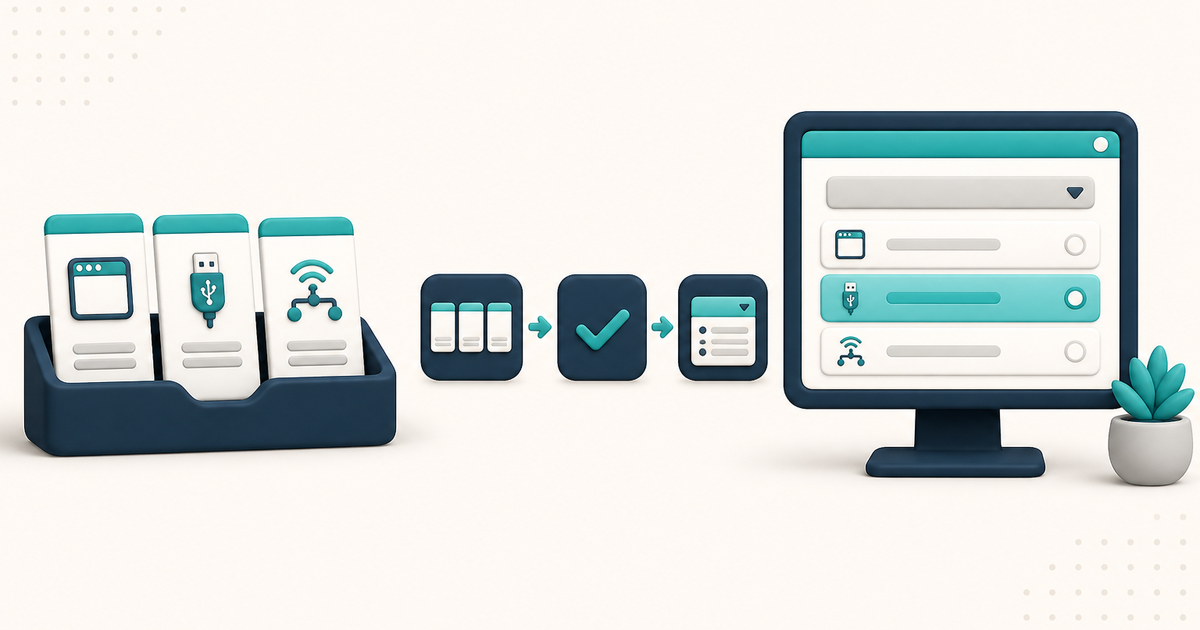
Pick the scanner in Select Scanner. One device can appear as (Windows), a bare TWAIN name, and (Network). Dedicated scanners use TWAIN; multifunction printers use Windows or Network.
Watch the video walkthrough
📝 Overview
The ElderSuite Scan Manager is the window ElderSuite uses to pull paper into the program. It is never opened from a Center on its own. Another window opens it and tells it what the scan is for.
ElderSuite serves adult day care centers nationwide.
The scanner is chosen in the Select Scanner group. ElderSuite searches every path Windows offers at once. Entries can show (Windows) after the name, the bare scanner name from a TWAIN driver, or (Network) after the name. If Windows' built-in Scan app can see the scanner, ElderSuite can scan from it.
How to Scan Documents into ElderSuite covers Scanner on Client Documents, Employee Documents, and Provider Documents. How to Use Sign & Sync in ElderSuite covers scanning a signed paper copy from a saved record.
⚙ How It Works
1. Open the ElderSuite Scan Manager
Another window opens the ElderSuite Scan Manager and tells it what the scan is for. The Scan Manager opens on top of that window, and that window cannot be used until the Scan Manager closes.
The scanner list sits at the top of the Select Scanner group. Choose from the list only; the list cannot be typed into. If the scanner used last time is still there, ElderSuite selects it again.
2. Wait While the Scanner List Fills
The first scanner search of an ElderSuite session takes a few seconds. The list reads Searching for scanners... while that search runs. The list and Scan Now stay turned off until it finishes.
Later openings in the same session fill from the remembered list at once. If a quiet background search finds that the set of scanners has changed, the list is rebuilt. The scanner that was selected is selected again if it is still there; otherwise the scanner saved last time is chosen.
3. Read the Connection Labels
ElderSuite lists every scanner it can reach: scanners with a Windows or TWAIN driver installed, and network scanners that support driverless scanning.
- (Windows) after the name is a Windows (WIA) driver installed with the scanner's software.
- A bare scanner name is a TWAIN driver. Dedicated document scanners use this entry.
- (Network) after the name is driverless network scanning. Nothing extra has to be installed on the computer for that path.
One physical scanner that is reachable more than one way is listed once per path. A network multifunction printer may appear three times. All of those entries reach the same machine; they differ in which driver software produces the image. ElderSuite remembers whichever entry is picked.
4. Pick the Entry That Matches the Device
Check Show connection types in the Select Scanner group to see each connection as its own labeled entry. Unchecked, each physical scanner appears once with its connections folded together. The same physical scanner stays selected across the switch. The setting is remembered for next time. If the scanner search has not finished yet, checking or unchecking does nothing until the list fills.
- Dedicated document scanners: pick the bare-name TWAIN entry. That is the manufacturer's flagship driver for those devices.
- Multifunction printers: pick the (Windows) entry, or (Network) if no (Windows) entry appears. Printer TWAIN drivers are legacy add-ons.
On some multifunction printers, the TWAIN entry pulls the whole stack through the document feeder but returns only a single page, with no error. That is a defect in the printer's TWAIN driver, not in ElderSuite or the scanner hardware. Pick the same scanner's (Windows) or (Network) entry instead, reload the pages, and scan again. ElderSuite remembers the choice, so this is a once-per-computer correction.
TWAIN entries come from installed driver registrations, not from detecting live hardware. A leftover generic TWAIN name can appear even when no such device is attached. Picking an entry with no device behind it fails to scan. (Windows) and (Network) entries only appear for scanners that are actually present.
A scanner attached by USB to a different computer is never listed. Scanning happens on the computer the user is sitting at. A network scanner can be found from any computer on the same network.
5. When No Scanners Are Found
If the search finishes with nothing reachable, the list shows No scanners found. Install the scanner's software, turn the scanner on and connect it, then reopen the ElderSuite Scan Manager.
A few scanners are designed to work only with their manufacturer's own software and expose no driver interface. The Fujitsu / Ricoh ScanSnap family is the best-known example. Those devices never appear in ElderSuite's scanner list on any computer.
A ScanSnap owner can still scan to PDF with ScanSnap Home, then attach the file through Local Files on Client Documents, Employee Documents, or Provider Documents. Scan Times and Scan Meals read pages directly from the scanner and cannot be used with a ScanSnap.
Fujitsu fi series document scanners are a different product family. The ScanSnap limitation is specific to ScanSnap, not to the manufacturer.
⚠ Windows Firewall Allow for Network Scanners
The first time the Scan Manager opens on a computer, Windows may ask whether to allow ElderSuite to communicate on the network. That prompt is the search for network scanners. Choosing Allow needs an administrator.
If it is declined, Windows remembers the refusal silently. There is no second prompt. USB scanners and scanners with installed drivers keep working normally. Only network-scanner discovery is affected on that computer.
A network multifunction printer whose driver software is installed still appears through its (Windows) entry even when the firewall blocks discovery.
To undo a refusal, open Windows Security, then Firewall & network protection, then Allow an app through firewall, and allow ElderSuite.
💡 Need More Help?
For step-by-step instructions, click Ask Eddie from within ElderSuite.
Follow ElderSuite in Google
Add ElderSuite as a Preferred Source to help Google show you more of our adult day care articles, industry updates, and resources.
For step-by-step instructions, click Ask Eddie from within ElderSuite.
ElderSuite is adult day care software for attendance, Medicaid billing, nursing documentation, and CACFP. You can try it free for 30 days.
Start a Free Trial
