
How to Calculate Meals from Attendance Times
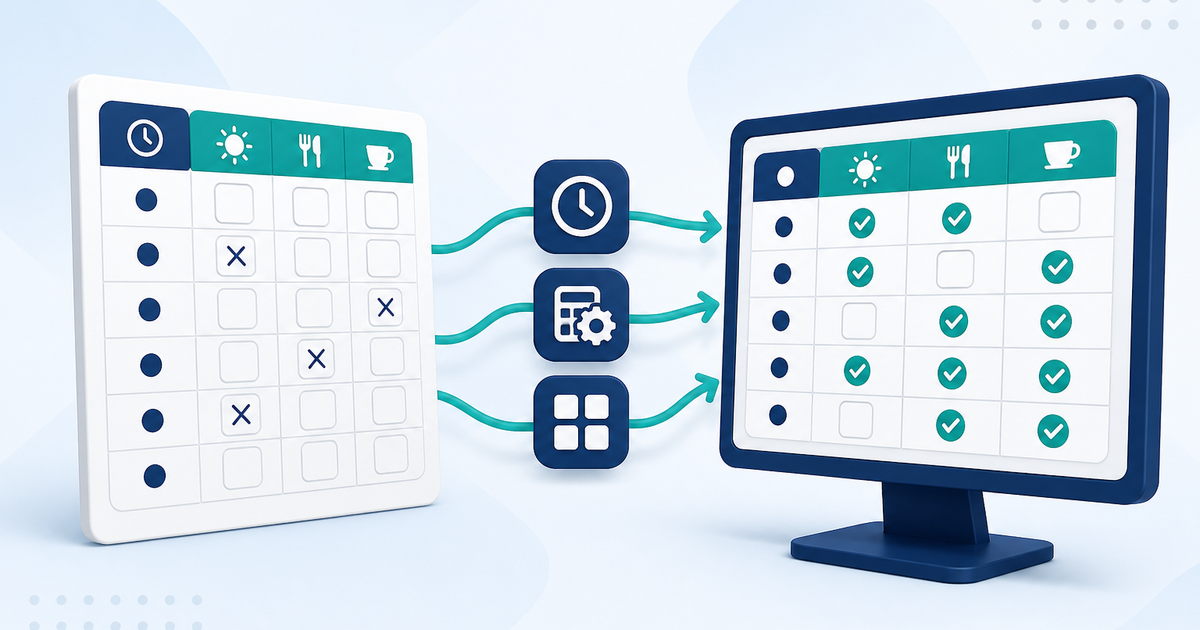
Use Calculate Meals on Meal Records to tick breakfast, lunch, and snacks from that day's attendance times. Review the boxes, then Save & Close so the meal counts stay with the day.
Watch the video walkthrough
📝 Overview
Meal Records is where a center records the meals served to each client for one service date.
Use Calculate Meals when the day's pickup and drop-off times are already recorded. ElderSuite compares those attendance times with the center's configured meal times and selects Breakfast, Morning Snack, Lunch, and Afternoon Snack when the client was present during the applicable meal period.
Open Meal Records from the Nutrition Center. The window shows one date at a time, and staff can review or change the meal selections before saving.
Calculate Meals works from attendance times. Scan Meals is a separate workflow for reading marked meal-count logs.
⚙ How It Works
1. Open Meal Records and Set the Date
Open the Nutrition Center and click Meal Records. The window opens on today's date.
Set Date to the service day you are recording so the grid shows that day's roster and any meals already saved for the date.
Each client row includes Breakfast, Morning Snack, Lunch, and Afternoon Snack.
The serving periods used by Calculate Meals come from Manage Meal Times in the Nutrition Center.
2. Click Calculate Meals
Click Calculate Meals. ElderSuite reads the client's attendance times for that service date and selects the meals that fall within the configured meal periods.
A client with no attendance times is skipped because there are no service times to compare. Staff can still select a meal manually when appropriate.
If a client has more than one attendance interval during the day, ElderSuite uses the recorded intervals when evaluating the meal periods.
A meal that the center has not configured in Manage Meal Times remains unselected.
The selections shown after Calculate Meals are not stored until the day is saved.
3. Review and Save the Day
Review the calculated meal selections and make any needed corrections, then click Save & Close.
Meal Records does not create attendance times, service units, or a pay amount. Those values belong to Attendance & Transportation Records.
If a meal is saved for a client who does not yet have attendance times for that date, ElderSuite can create the associated Pending daily record with the meal information while the attendance and billing values remain incomplete.
✅ Important Limitations
Calculate Meals does not create attendance times and skips clients without recorded attendance times.
It does not select a meal that is not configured in Manage Meal Times, and it does not save the day automatically.
Closing Meal Records with unsaved changes prompts whether to save. Choose Yes or use Save & Close to keep the meal selections.
Calculate Meals does not read printed meal-count logs. Use Scan Meals for that workflow.
💡 Need More Help?
For help with Meal Records or Calculate Meals, open Ask Eddie inside ElderSuite.
Follow ElderSuite in Google
Add ElderSuite as a Preferred Source to help Google show you more of our adult day care articles, industry updates, and resources.
For help with Meal Records or Calculate Meals, open Ask Eddie inside ElderSuite.
ElderSuite is adult day care software for attendance, Medicaid billing, nursing documentation, and CACFP. You can try it free for 30 days.
Start a Free Trial
