
TMHP Connectivity Changes for ElderSuite Claims and Reports
TMHP replaced VPN connectivity for batch EDI transactions with SFTP on September 1, 2026. Current ElderSuite versions use the SFTP workflow for TMHP claims and report downloads.
Watch the video walkthrough
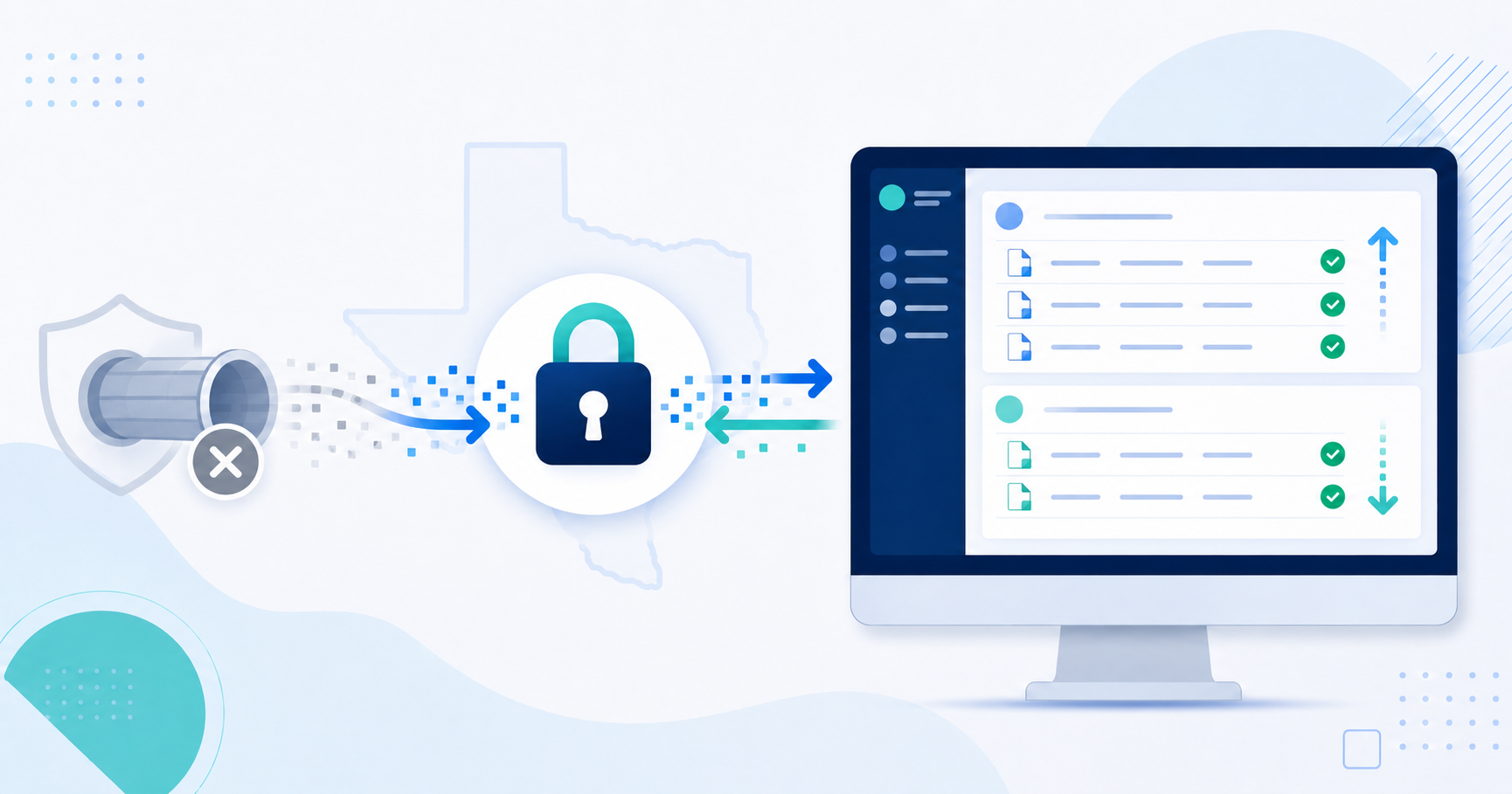
TMHP changed the connection method used for batch Electronic Data Interchange transactions from VPN connectivity to Secure File Transfer Protocol, or SFTP.
TMHP originally scheduled the cutover for August 1, 2026, then moved it to September 1, 2026. That date has passed, and SFTP is now the connection method for batch submitters.
ElderSuite was updated for the SFTP workflow ahead of the cutover. On a current ElderSuite version, users submit TMHP claims and download TMHP reports directly through the Claim Center without connecting Cisco AnyConnect.
For the broader billing workflow, see Adult Day Care Billing Software.
What ElderSuite users need to do
- Update ElderSuite on every workstation used for TMHP billing or report downloads.
- Disconnect Cisco AnyConnect if it is running, and do not reconnect it for TMHP. While the VPN is connected it prevents ElderSuite from processing claims and downloading reports.
- Use the TMHP Submitter ID and EDI password configured for the TMHP clearinghouse connection.
Update every billing workstation
Updating one computer does not update the other ElderSuite workstations. If TMHP works on one computer but not another, compare the ElderSuite versions before changing credentials or clearinghouse settings.
Open Help Center → Update ElderSuite on each workstation used for TMHP transactions. Restart ElderSuite after installing an update.
Scrub and submit TMHP claims through Claim Center
Open Claim Center → Scrub Claims, select the claims for the billing period, and run Scrub & Fix. Resolve every scrub error and save the claims before continuing. Scrubbing is required before submission.
Then open Claim Center → Process Claims, choose the applicable TMHP payment type, select TMHP as the clearinghouse, choose the dates and clients, and process the batch.
Claims move to Submitted after the upload succeeds and the status changes are saved.
Download TMHP reports through View Reports
Open Claim Center → View Reports, click Download Reports, and choose TMHP in the Select Clearing House window.
Review the downloaded reports before reconciling claim outcomes. A successful electronic transmission or clearinghouse acceptance is not the same as payer payment.
Test the TMHP connection when needed
If a current ElderSuite workstation still cannot connect, open Claim Center → Manage Clearing Houses, select TMHP, open the record, and use Test Connection.
Verify the TMHP Submitter ID and EDI password saved in ElderSuite. The former Cisco VPN credentials were always separate from the TMHP EDI credentials and should not be substituted for them.
If the EDI credentials or account cannot be verified, use the current TMHP contact information on the TMHP contact page.
Quick troubleshooting order
- Confirm the workstation is running the current ElderSuite version.
- Make sure Cisco AnyConnect is disconnected.
- Retry the transaction through the Claim Center.
- Use Test Connection for the TMHP clearinghouse record.
- Verify the TMHP Submitter ID and EDI password.
- Contact TMHP when the EDI account or credentials require assistance.
After the September 1 transition
TMHP's batch-EDI SFTP cutover took effect on September 1, 2026. Current ElderSuite versions are already configured for that connection method, so there is nothing for ElderSuite users to schedule or wait for.
TMHP remains the authority for EDI trading-partner requirements. Check TMHP's current EDI notices if those requirements change.
💡 Need More Help?
For help locating an ElderSuite screen or checking the workflow, use Ask Eddie or contact ElderSuite Support.
Follow ElderSuite in Google
Add ElderSuite as a Preferred Source to help Google show you more of our adult day care articles, industry updates, and resources.
Update every TMHP billing workstation, keep Cisco AnyConnect disconnected, and use Claim Center for TMHP claims and report downloads.
ElderSuite is adult day care software for attendance, Medicaid billing, nursing documentation, and CACFP. You can try it free for 30 days.
Start a Free Trial
