
How to Manage Tasks in ElderSuite
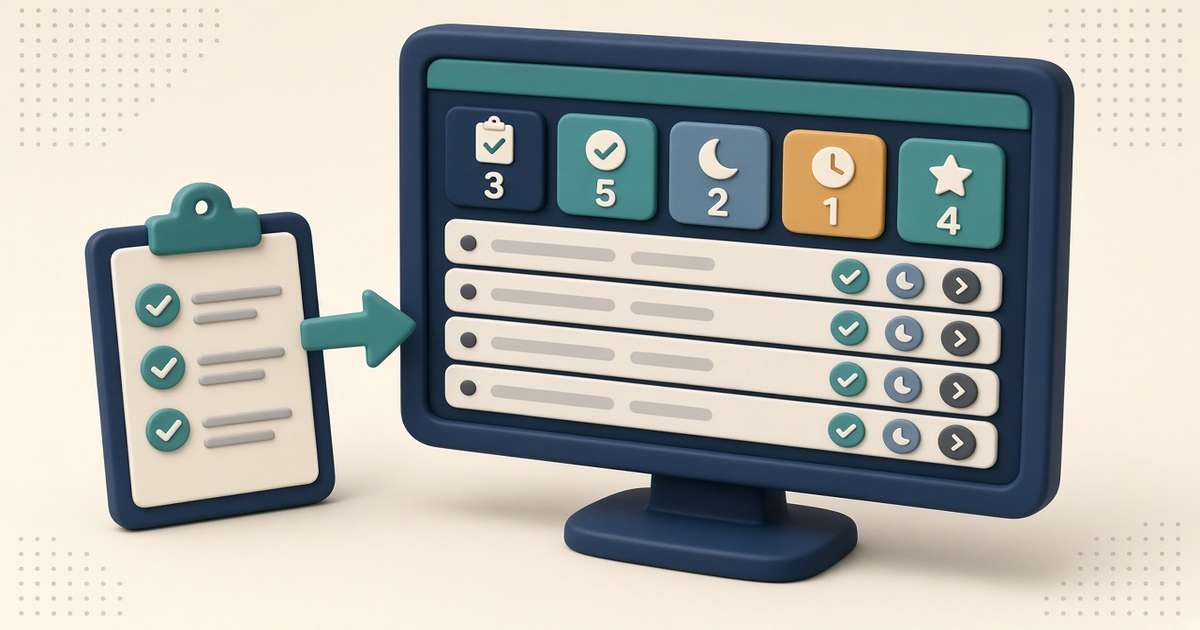
Open Manage Tasks from Client Center to work every client's due queue: complete, snooze, or open a task, then filter with Show and Assigned To as needed.
Watch the video walkthrough
📝 Overview
Manage Tasks is the Client Center work queue for every client task on file. It shows the same tasks that appear on each client’s Tasks tab—gathered in one place so staff can work what is overdue or due soon without opening each client first.
ElderSuite serves adult day care centers nationwide.
Open Client Center from the ElderSuite main menu and click Manage Tasks. That is the only Center route into this window. The list opens on Due and Overdue: open tasks due within the next 14 days or already past, with tasks snoozed to a later date held back. Five tiles across the top count Overdue, Due today, Due soon, Snoozed, and Completed today from the whole task table.
Use the in-row buttons to mark work done, put it off, or open the Client Task window. New tasks are added from Client List or the client record with Add Task, not from Manage Tasks itself. For permissions that control who can act on tasks, see How to Add Employees and Set Permissions in ElderSuite.
⚙ How It Works
1. Open Manage Tasks From Client Center
Open Client Center and click Manage Tasks on the Client Center activity panel.
The window opens inside the ElderSuite main window. If it is already open, ElderSuite brings that copy forward instead of opening a second one.
Anyone who can reach Client Center can open Manage Tasks and read the list. A Limited Access sign-in needs the Manage Client Tasks permission to use ✓ Complete, Snooze, or Open ▸. Without that permission those buttons are not drawn and double-clicking a row does nothing, but the list stays readable.
2. Read the Tiles and Work the List
Read the five tiles for the day’s position, then work down the list. The list sorts by Due Date oldest first, so the most overdue task is at the top. Click a column header to sort by another column if needed.
Each row shows the client, the task, the due date, a Status line such as Due today or Snoozed until a date, who it is assigned to, and any details text. Every data column is read-only—you cannot type over the list.
The tile numbers are counted from the whole task table. They do not change when you change Show or Assigned To, so the day’s counts stay visible even when the list is narrowed.
3. Filter With Show and Assigned To
Use Show: on the filter bar to choose the list view:
- Due and Overdue — open tasks due within the next 14 days or already past (the opening view; snoozed tasks stay hidden until their snooze date)
- All Open — every task that has not been completed, including due dates farther out
- Completed — tasks completed within the last 90 days
- All Tasks — every open task plus completed tasks from the last 90 days
Use Assigned To: to narrow the list to one employee. Leave it on everyone when you want the full queue. Departed employees still appear when they remain assigned to a task the queue can show, so those tasks stay findable for reassignment.
4. Complete, Snooze, or Open a Task
On the row you need, click ✓ Complete, Snooze, or Open ▸. One click is enough; you do not have to select the row first. Each completion or snooze saves to ElderSuite on the spot—there is no separate Save button on Manage Tasks.
✓ Complete records who finished the task and when. If the task repeats on a schedule other than Fixed Date, ElderSuite creates the next occurrence from the day you completed it, carrying the same client, task name, details, repeat setting, and assigned employee. For Fixed Date, the Complete Task question asks When is this task due next?, offers one year from today, and refuses any date before tomorrow. Cancel that prompt and the task stays open and unchanged.
Snooze opens the Snooze Task question When should this task come back?, offers one week from today, and refuses any date before tomorrow. After you confirm, the task leaves the Due and Overdue view until that date, and its Status reads Snoozed until that date. Cancel and nothing is changed.
Open ▸ (or a double-click on the row) opens the task in the Client Task window so you can change the task name, due date, repeat setting, assigned employee, or details, then click Save & Close. Only one Client Task window is open at a time.
5. Add a New Task From the Client
New tasks start on the client, not on Manage Tasks.
From Client List, select the client and click Add Task. From the client record, click Add Task there. If the client has never been saved, ElderSuite asks you to save the record before related tasks can be created.
The Client Task window opens titled for that client, with Due Date set to today and Repeats set to None. Type what needs to be done in the Task box, change the due date or repeat setting when needed, optionally choose Assigned To (optional), add details when useful, and click Save & Close. The new task then appears on that client’s Tasks tab and in Manage Tasks.
⚠ Tile Counts Stay With the Day
The five tiles at the top of Manage Tasks describe the whole day’s task table.
Changing Show or Assigned To only changes which rows appear in the list. The tile numbers do not follow those filters. Use the tiles for the day’s position, and use the filters when you need a narrower working list.
💡 Need More Help?
For step-by-step assistance, click Ask Eddie from within ElderSuite.
Follow ElderSuite in Google
Add ElderSuite as a Preferred Source to help Google show you more of our adult day care articles, industry updates, and resources.
For step-by-step assistance, click Ask Eddie from within ElderSuite.
ElderSuite is adult day care software for attendance, Medicaid billing, nursing documentation, and CACFP. You can try it free for 30 days.
Start a Free Trial
