
Case Information Assessment - Form 2067
Staff maintain the Case Information Assessment in the Client Center. ElderSuite prints Case Information - Form 2067 from that saved record when a paper copy is needed.
Watch the video walkthrough
📝 Overview
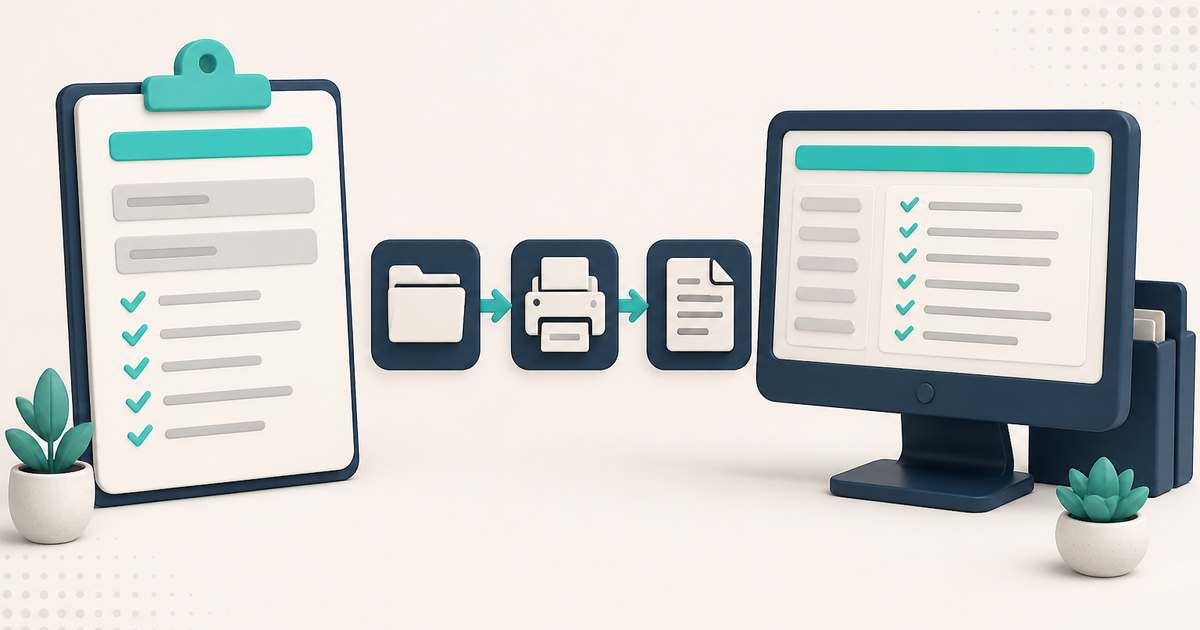
The Case Information Assessment is the ElderSuite record staff use to keep a client's case information. Open it from the Client Center. ElderSuite prints Case Information - Form 2067 from that saved record when a paper copy is needed.
ElderSuite serves adult day care centers nationwide.
Staff record the applicable information on the assessment. This is a dedicated Case Information workflow. It is not a generic document-storage screen, and staff do not fill a downloaded 2067 PDF by hand.
Governing program requirements decide when Form 2067 is required. ElderSuite does not.
⚙ How It Works
1. Open Case Information Assessments
Open the Client Center and click Case Information Assessments. Case Information List opens with clients on the left and the selected client's records on the Case Information Assessments tab.
Highlight the client you want. Each Case Information Assessment belongs to one client. Work from that client's record.
For a Limited Access sign-in, Case Information Assessments can be unavailable until the matching Client Center permission is granted on the employee record.
The same list can also open from Report Center by selecting Case Information - Form 2067. Form 2067 still prints from the open Case Information record, not from the list heading.
2. Create and Maintain the Record
Click Add New to start a Case Information Assessment for the selected client, or open an existing record with Edit or a double-click.
Complete the applicable information. Choose the case worker in the TO box. Keep a complete Date on the record. A selected case worker, a selected client in Select Client, and a complete Date are required before ElderSuite will save the record.
Click Save & Close to store the Case Information Assessment. After the first successful save, that record stays with the selected client. Select Client is then turned off, so a record filed against the wrong client has to be deleted and started again.
The FROM block comes from the provider record. A case worker can be added from the record without leaving it.
3. Print Form 2067 From That Record
Open the saved Case Information Assessment and click Print. ElderSuite fills Case Information - Form 2067 and opens it in the Report Viewer.
Printing produces the completed form from the information already maintained on the client's Case Information Assessment. It does not download a blank government PDF for staff to fill by hand.
Print also requires a case worker, a client, and a complete Date. If the record has unsaved changes, ElderSuite asks whether to save first.
4. File the Signed Copy
ElderSuite maintains the Case Information Assessment and prints Form 2067. The signed copy that returns is kept as a client document.
From the saved record, Sign & Sync opens the ElderSuite Scan Manager so the signed paper copy can be scanned into the client's documents. View Signed Copy appears on the menu bar once a signed copy is on file. Staff can also open signed copies from the Sign & Sync Documents tab on Case Information List.
How to Scan Documents into ElderSuite covers the document workflow. How client records sit together is covered in Adult Day Care Documentation: Organizing Center Records. Starting the client this record belongs to is covered in How to Add a Client in ElderSuite.
⚠ Save Needs a Case Worker, Client, and Date
Save & Close stores the Case Information Assessment only when a case worker is selected, a client is selected in Select Client, and Date is filled in. If any of those three is missing, the window stays open and nothing is saved.
Check the TO box, Select Client, and Date, then click Save & Close again.
💡 Need More Help?
For step-by-step instructions, click Ask Eddie from within ElderSuite.
Form 2067 is one of many records kept with the client — see documentation and recordkeeping in ElderSuite.
Follow ElderSuite in Google
Add ElderSuite as a Preferred Source to help Google show you more of our adult day care articles, industry updates, and resources.
For step-by-step instructions, click Ask Eddie from within ElderSuite.
ElderSuite is adult day care software for attendance, Medicaid billing, nursing documentation, and CACFP. You can try it free for 30 days.
Start a Free Trial
