
How to Add Client Diagnoses in ElderSuite
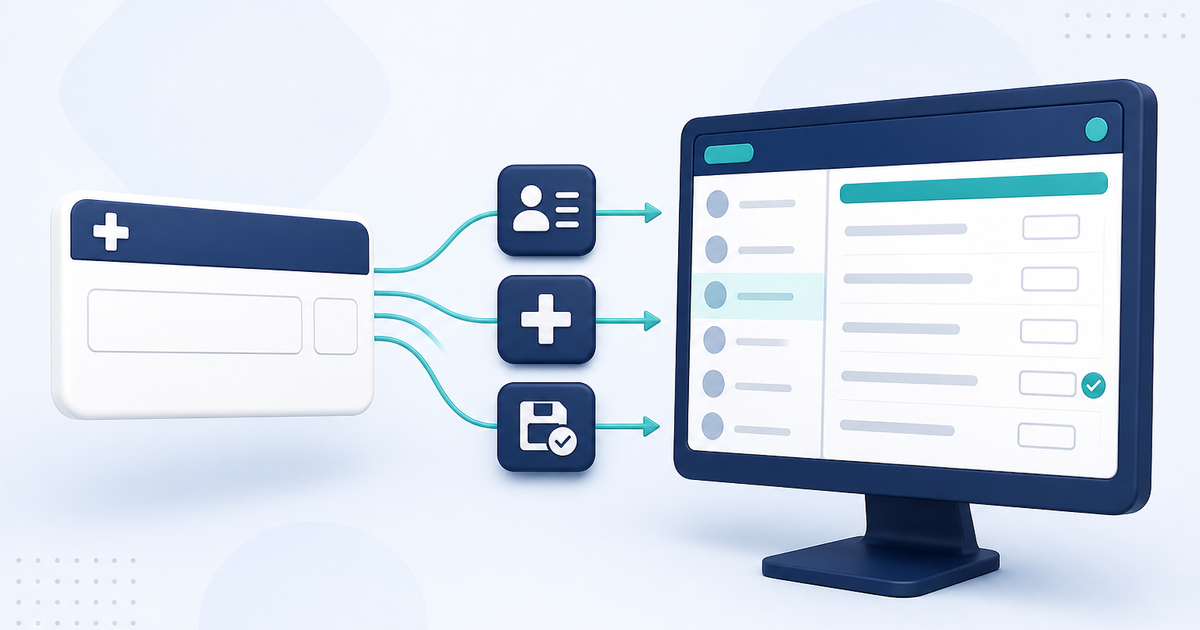
Open Diagnoses in the Nursing Center and record each client's conditions in one list. Medications, treatments, a Physician's Order, and the health and nursing assessments can all use the same record.
Watch the video walkthrough
📝 Overview
Diagnoses keeps each client's medical conditions in one list in the Nursing Center, making them available to medications, treatments, a Physician's Order, and applicable nursing assessments.
Open Diagnoses from the Nursing Center. The Diagnoses List shows clients on the left and the diagnoses for the highlighted client on the right.
Each diagnosis record belongs to one client. It stores the diagnosis description, an optional ICD-10 Code, an optional onset date, notes, and an Inactive setting.
⚙ How It Works
1. Open Diagnoses in the Nursing Center
Open the Nursing Center and click Diagnoses. The Diagnoses List opens with clients on the left and that client's diagnoses on the right.
Highlight the client you want. The right side shows only that client's diagnoses, so you are always working with one client at a time. Set View to All Clients when you need a client who is no longer attending.
You can also open the Diagnosis window from a medication, treatment, or Physician's Order when a diagnosis needs to be created while working in that record.
2. Add or Edit a Diagnosis
Click Add New to open the Diagnosis window for the highlighted client. Click Edit, or double-click a row, to open an existing diagnosis.
Enter the Diagnosis. That field is required. Add an ICD-10 Code, onset date, and notes when they apply. Those fields are optional.
Set Inactive when a diagnosis is no longer current but should remain in the client's history.
On a new record, the client is already set to the one you highlighted. After the first successful save, that client cannot be changed.
3. Click Save & Close
Click Save & Close to store the diagnosis and close the window.
If you click Delete, ElderSuite asks for confirmation before removing the diagnosis. A diagnosis that is already used by another record cannot be deleted. In that situation, preserve the history by setting the diagnosis to Inactive and clicking Save & Close.
✅ Important Limitations
The ICD-10 Code field is optional, and ElderSuite does not validate the code against an ICD-10 code set. The code entered by the user is saved as entered.
A saved diagnosis cannot be moved to another client. A diagnosis that is already used by another record cannot be deleted; mark it Inactive instead.
⚠ Required Information
A diagnosis record requires both a selected client and an entry in the Diagnosis field. Complete both before clicking Save & Close.
The diagnosis is stored only after the save succeeds.
💡 Need More Help?
For help with a diagnosis screen or workflow, open Ask Eddie inside ElderSuite.
Follow ElderSuite in Google
Add ElderSuite as a Preferred Source to help Google show you more of our adult day care articles, industry updates, and resources.
For help with a diagnosis screen or workflow, open Ask Eddie inside ElderSuite.
ElderSuite is adult day care software for attendance, Medicaid billing, nursing documentation, and CACFP. You can try it free for 30 days.
Start a Free Trial
