
How to Export Client Records in ElderSuite
Open Export Client Records from the Client List, choose All Records or Active Records, then save a CSV spreadsheet file of your client information from ElderSuite.
Watch the video walkthrough
📝 Overview
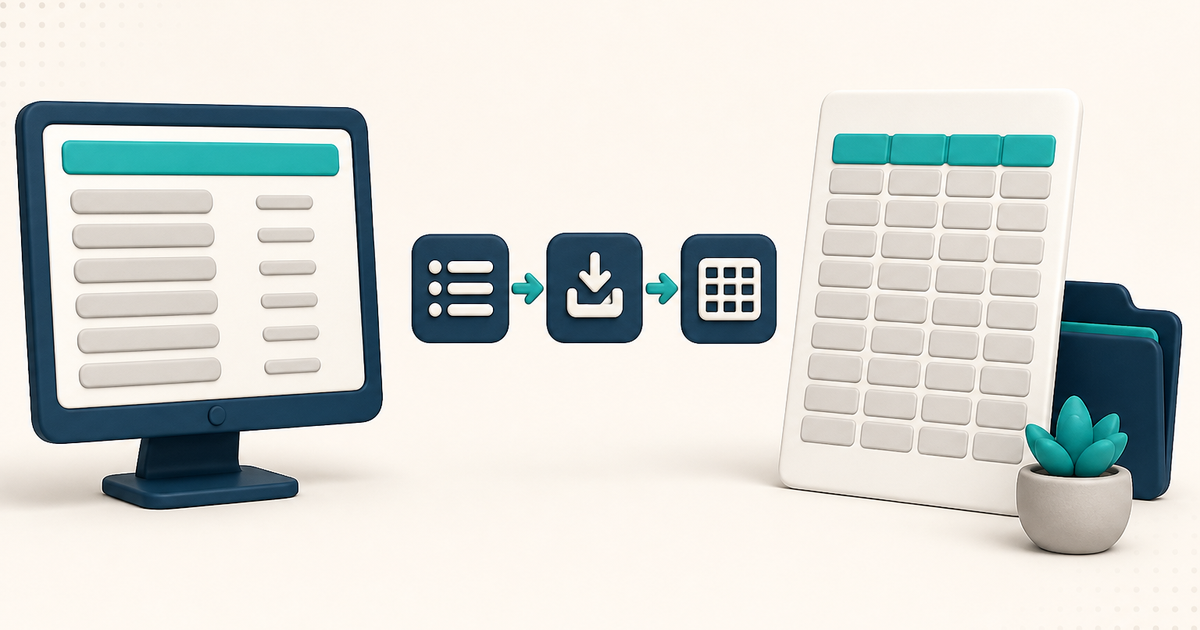
Export Client Records writes client information from ElderSuite into a comma separated value text file so you can open it in a spreadsheet.
Open Client Center from the ElderSuite main menu, open Client List, then click Export Client Records on the toolbar. Choose All Records or Active Records, name the file, and confirm the save. ElderSuite writes the file and closes the export dialog when it finishes.
This export only reads client data. It does not change, save, or delete anything in ElderSuite. It is separate from claim exports in the Claim Center, and it is separate from printable rosters such as Client Roster - Form ES1200 in the Report Center.
⚙ How It Works
1. Open Export Client Records From the Client List
Open Client Center and click Client List.
Click Export Client Records on the client list toolbar. A short wait can appear while ElderSuite loads the export data, then the Export Client Records dialog opens on top of the list.
The dialog is reached only from Client List. It has no separate link on any Center.
For a Limited Access sign-in, Export Client Records requires the Export Client Information permission. Without it, the button is unavailable. Permissions are read at sign-in, so sign out and back in after the permission is granted.
2. Choose All Records or Active Records
The dialog has no fields to fill in. Choose one export option:
- All Records includes every loaded client, including clients marked Inactive.
- Active Records includes only clients that are not marked Inactive.
If ElderSuite finds no matching clients, it shows No Records Found with the message There were no client records found to export at this time. No save window opens, and the dialog stays open so you can try the other option. With Active Records, that message usually means every loaded client is marked Inactive. Use All Records when you need those clients too.
3. Name the File and Confirm the Save
When matching clients are found, the save window opens on the Desktop. The file type is fixed as Comma Separated Value - Text File (*.csv). You can move to another folder before saving. Canceling the save window writes nothing and leaves Export Client Records open.
After you confirm the save, ElderSuite writes a header line of field names, then one line for each included client. Payment type, route, and referral type appear as names. The dialog closes by itself when the file is finished, and you return to Client List.
Open the CSV in a spreadsheet program when you need to sort, filter, or reformat the columns.
4. Close Without Exporting if Needed
The export dialog has no Cancel or Close button of its own. Use the window close control in the title bar to leave without creating a file. The client list is unchanged.
✅ Important Limitations
The file is always a CSV. ElderSuite does not offer an Excel workbook file type.
You do not choose which columns to include. ElderSuite writes a fixed set of client fields. The client photo and certain internal identifiers are left out. Find the columns you need in the spreadsheet after the export.
Export Client Records does not print a formatted roster. For a printable list, use Client Roster - Form ES1200 from Report Center → Client Reports.
This client export is not the claims export used from Scrub Claims or Reconcile Claims.
⚠ Close the Spreadsheet Before Overwriting
If the target file is already open in another program, ElderSuite shows File In Use with the message that the file is currently in use by another process. The export stops, and the file can be left incomplete or unwritten.
Close that file in the other program, or save under a different name, then export again.
💡 Need More Help?
For step-by-step instructions, click Ask Eddie from within ElderSuite.
Follow ElderSuite in Google
Add ElderSuite as a Preferred Source to help Google show you more of our adult day care articles, industry updates, and resources.
For step-by-step instructions, click Ask Eddie from within ElderSuite.
ElderSuite is adult day care software for attendance, Medicaid billing, nursing documentation, and CACFP. You can try it free for 30 days.
Start a Free Trial
