
ElderSuite Checks for Updates on Its Own
ElderSuite checks for a new version at start-up, every eight hours, and when you close. Users can also check manually from the Help Center so this computer stays current without a separate installer visit.
Watch the video walkthrough
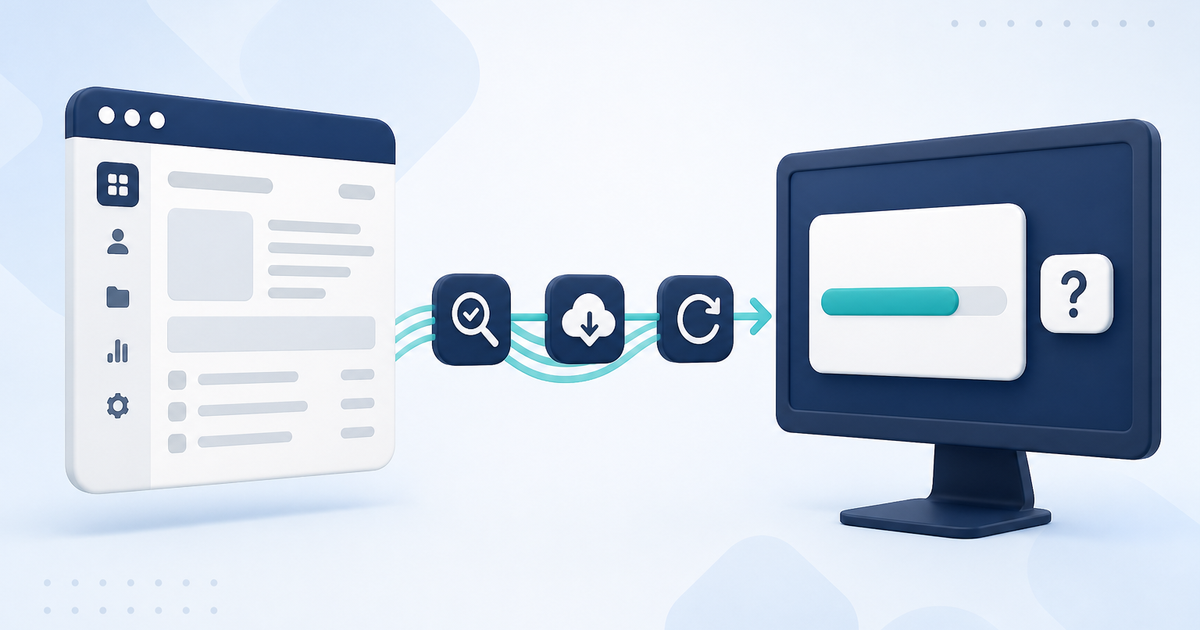
ElderSuite checks automatically for software updates so each computer can stay current without a separate installer visit.
When ElderSuite Looks for an Update
ElderSuite looks for a new version at start-up, every eight hours while it is running, and once more when you close.
At start-up, if an update is available, ElderSuite asks There is an ElderSuite Update available for download. Would you like to update now? under the heading Install Update?. Choose Yes to start the download.
While ElderSuite is running, it checks again every eight hours. If an update is found, it asks An ElderSuite update is available for download. Would you like to update now? under the heading Update Available. Choose Yes to start the download. Choose No and the eight-hour wait starts again. Nothing is downloaded, and you can keep working.
When ElderSuite is closing, it checks once more. If an update is found, the download starts without asking again. ElderSuite is already stopping, so that is the moment the new version can install.
Check from Help Center
You can also start a check yourself. Open Help Center and choose Update ElderSuite. ElderSuite looks for any available updates right away, instead of waiting for the next automatic pass.
If an update is available, ElderSuite asks There is an ElderSuite update available. Would you like to install it now? under Update Available. Choose Yes and ElderSuite closes so the download can begin. Save your work first. The whole application closes, not only the Help Center.
If this computer is already current, the message is This is the latest version of ElderSuite under Latest Version Installed. Nothing is downloaded, and ElderSuite stays open.
What You See While it Downloads
When a download is under way, ElderSuite shows Downloading Updates... and a progress bar that fills as the file arrives. You will not be able to keep working in ElderSuite until the download finishes, so save your work before you agree to an update.
When the last block arrives, ElderSuite closes and the installer starts so the new version can install. That close is expected. The new version cannot be installed while the old one is still running.
If the installed version is already current, that download is never shown.
How to Read the Version on this Computer
To read the version that is running, open Help Center and click About ElderSuite.
Administrators who need every computer in one list can open Provider Center and click Manage Device Installations. That list shows the ElderSuite version on each device, so you can see which machines are current.
The in-product check tells you whether this computer is current.
Follow ElderSuite in Google
Add ElderSuite as a Preferred Source to help Google show you more of our adult day care articles, industry updates, and resources.
To check this computer now, open Help Center and choose Update ElderSuite.
ElderSuite is adult day care software for attendance, Medicaid billing, nursing documentation, and CACFP. You can try it free for 30 days.
Start a Free Trial
